

This article walks through how to manage an active Agile EP subscription. Whether you’re expanding your team or adding a new product, the steps are straightforward once you know where to go.
Depending on what you need to do, you may:
Add a new product
Add users to an existing subscription
Add users to a different product subscription
Change from one product to another
Most subscription changes begin in Manage > Subscriptions. The only exception is adding a brand-new (or additional) product, which is done in the Store. Review this article to see how to add a new product to your account.
How Subscriptions Work in Agile EP
A few quick principles make everything easier:
Each product (for example, WA Only or Multi-State) has its own subscription.
Each subscription has its own user count.
Adding users is done on a per-subscription-basis.
Adding a new product is done from the Store, not from Subscriptions.
Your client data stays in Agile EP and is not tied to a specific product.
All paid subscriptions will automatically renew unless you cancel your subscription. You will receive a notification by email one week before the date of renewal prompting you to make any necessary changes.
Managing an Existing Subscription
To update users or billing period, go to: Manage > Subscriptions > Click Manage Subscriptions.
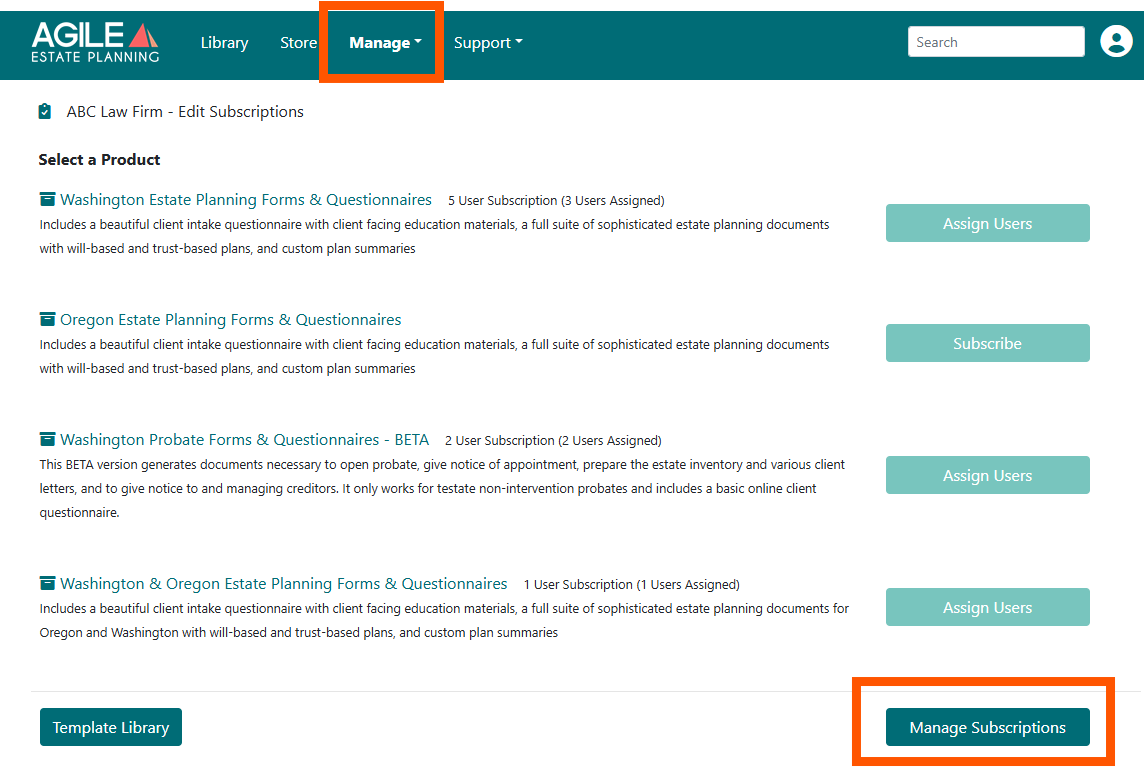
This opens the billing portal. Select the subscription you want to update.
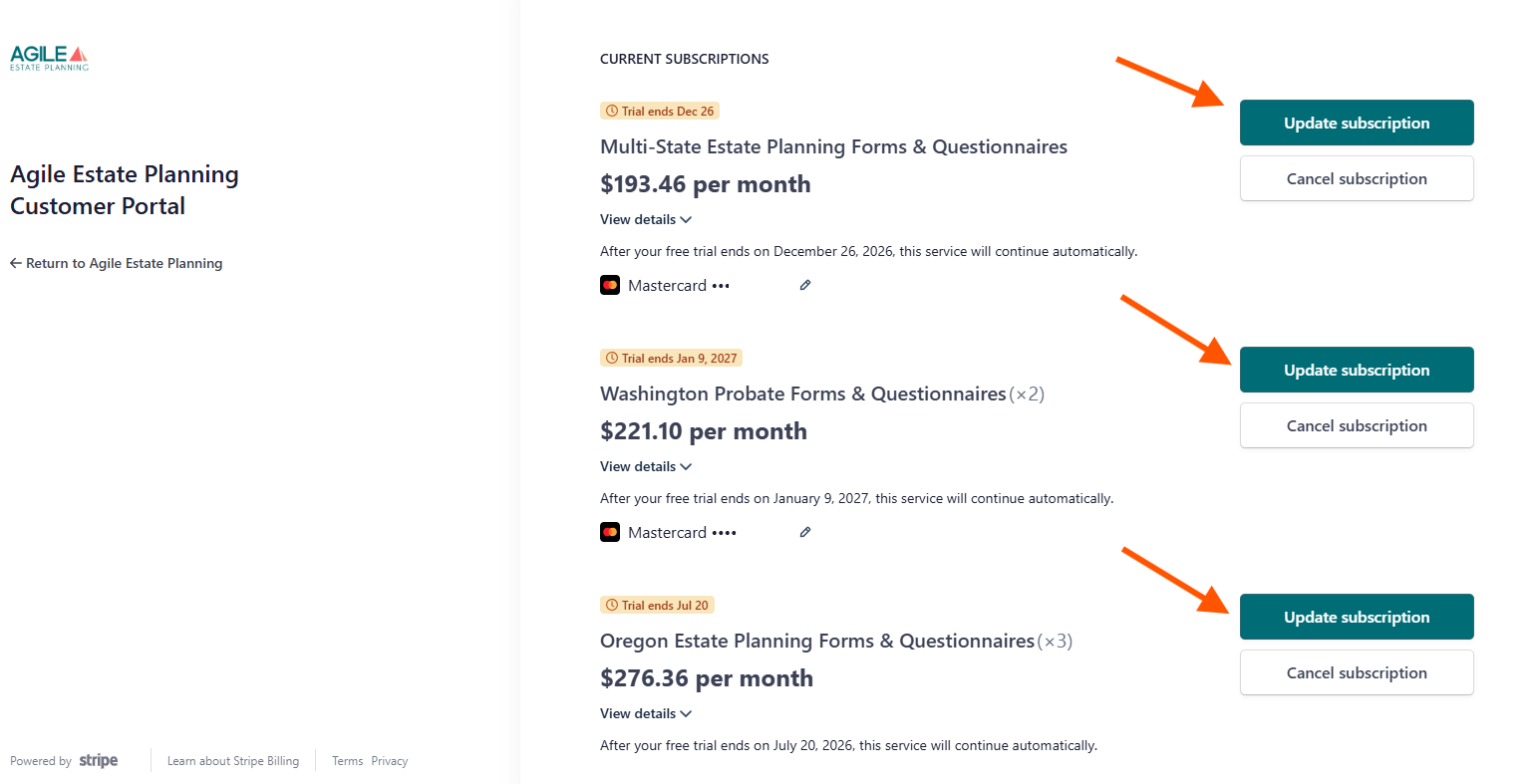
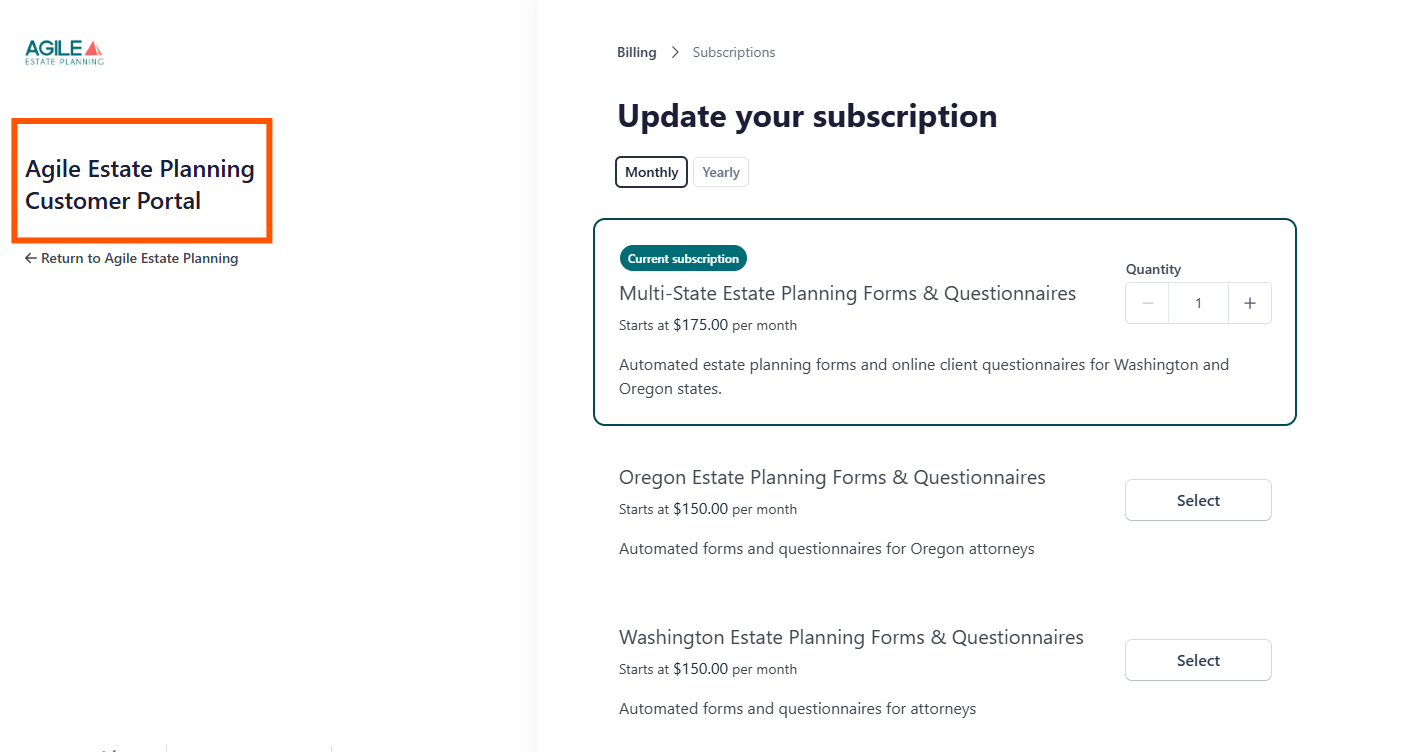
You will be taken to the Update your subscription screen (below).
Adding Users to an Existing Subscription
Scenario: You want to increase the number of users for a product you already subscribe to.
Go to: Manage > Subscriptions > Manage Subscriptions and select the subscription you want to update.
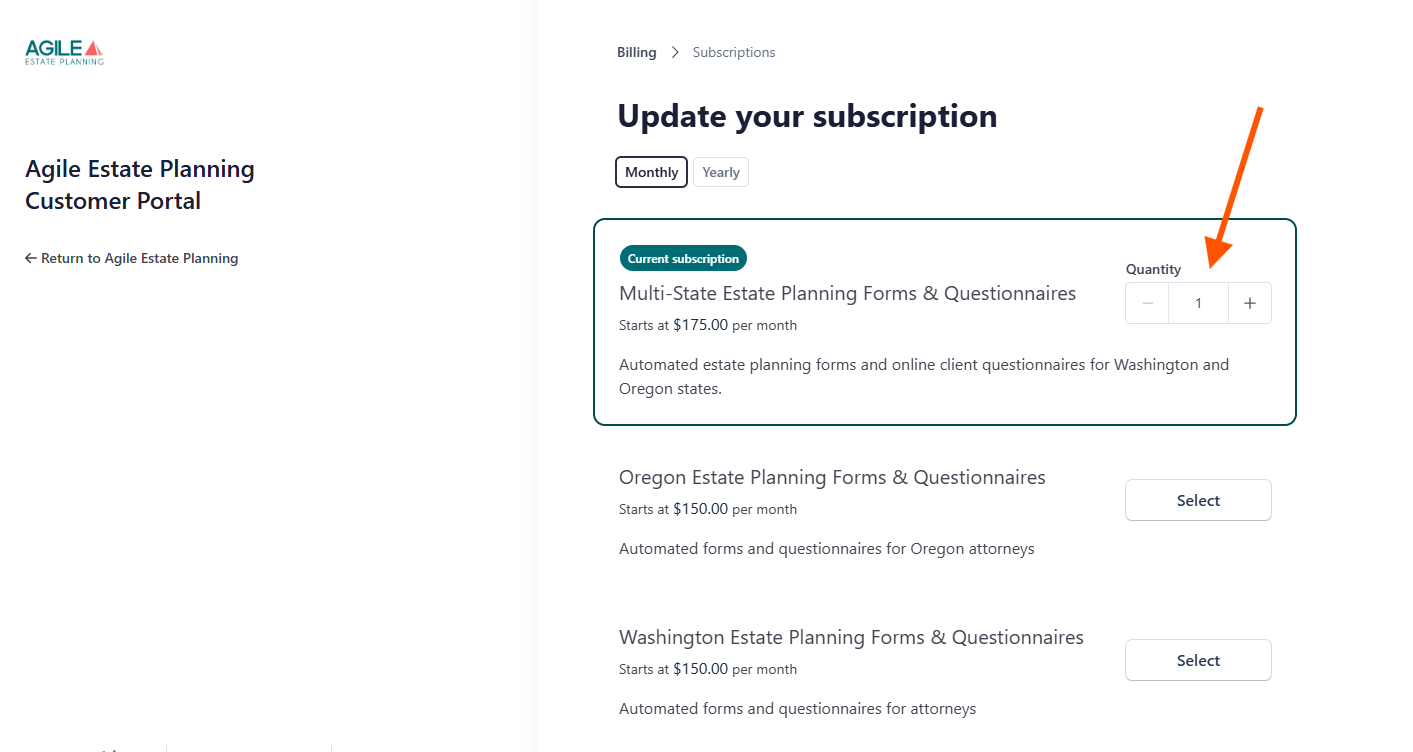
- In the Current subscription box, adjust the Quantity using the + or - buttons. The number shown is the total user count (for example, if you need 3 users total, set the quantity to 3).
- Follow the prompts to confirm. Billing will automatically adjust based on the updated user count, your billing period, and any applicable proration.
- Once confirmed, you can assign the new user subscriptions to the additional users inside Agile EP.
Changing Your Billing Period (Monthly or Yearly)
Scenario: You want to switch between Monthly and Yearly billing.
Go to: Manage > Subscriptions > Manage Subscriptions and select the subscription you want to update.
At the top of the page, use the toggle to select Monthly or Yearly, then follow the prompts to confirm.
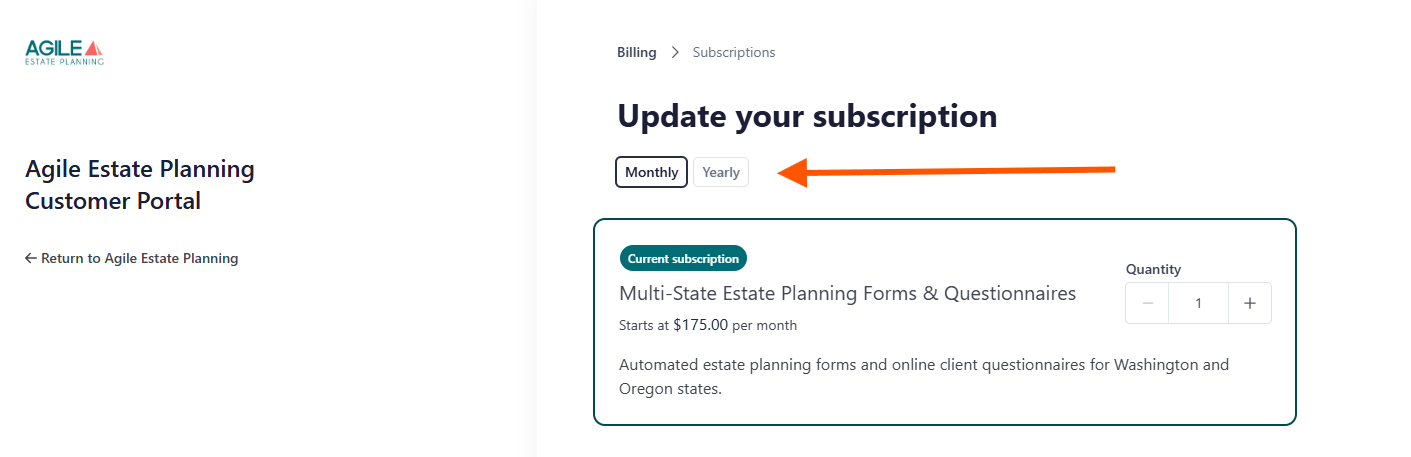
Your billing schedule will update based on the selected billing period and any applicable proration.