

Firm Administrators can manage user access and permissions within Agile EP. This includes editing a user’s role, adjusting permissions, or removing a user from the account.
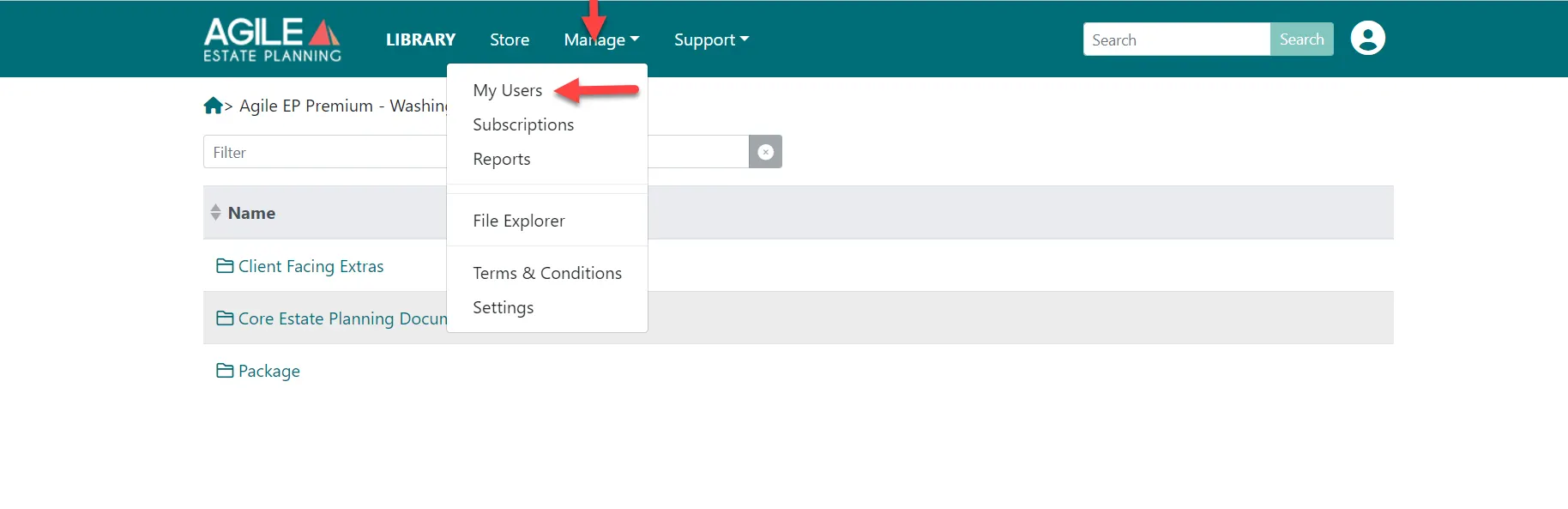
To manage users, go to: Manage > My Users
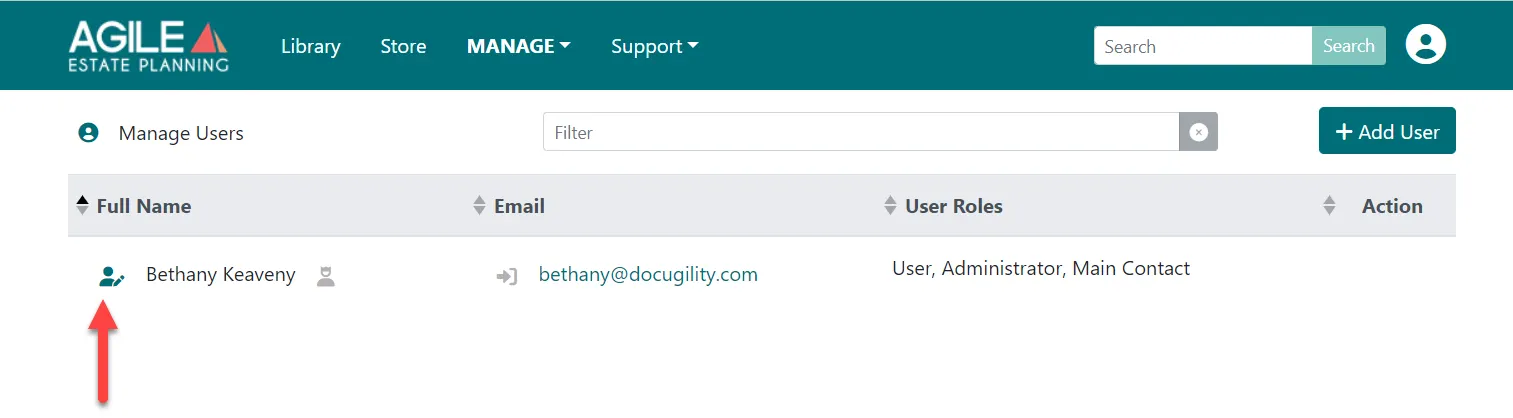
Locate the user you would like to update and click the person icon next to their name.
From there, you can update the user’s role or remove the user from the account.
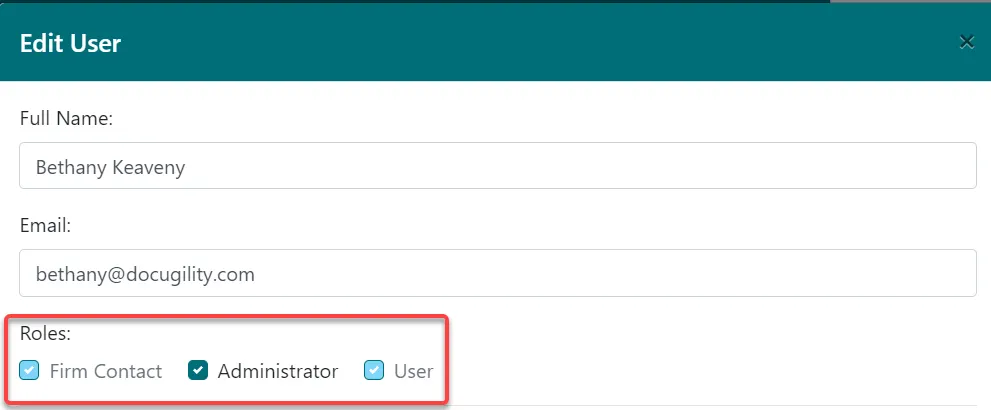
User Roles and What They Can Do
Each user is assigned a role that determines their level of access within the firm account.
Administrator
Administrators have full account access. They can:
Add, edit, and remove users
Change user roles
Enter and update Firm Information
Access all drafting and matter features
At least one Administrator is required for each firm account.
User
Users can:
Create and manage client matters
Complete questionnaires
Draft and assemble documents
They cannot:
Add or remove users
Change user permissions
Modify firm-level settings
Firm Contact
The Firm Contact is the primary contact for the account. This person typically:
Receives important account communications
Receives billing and subscription notices
Serves as the primary point of contact for administrative matters
If you’re a solo attorney, it’s very common for all roles in the account to be yours. You may serve as the Administrator, the Firm Contact, and the primary drafting user — all at the same time.

The role structure is designed to support larger firms with multiple team members, but it works just as smoothly for solo practices.
Changing a User’s Role
To update permissions:
Go to Manage > My Users
Click the person icon next to the user
Select the new role from the dropdown
Save your changes
Only an Administrator can modify user roles.
Removing a User
If a team member no longer needs access, an Administrator can remove them from the account from the same user management screen.
Removing a user does not delete client matters. Access is simply revoked for that individual login.