
The Manage Users page is where Firm Administrators manage access to the Agile EP account. You can access this page by going to: Manage > My Users
User Details
This page displays all users associated with your firm and allows you to:
View user names and email addresses
See each user’s assigned roles
Add new users
Edit existing users
Remove users from the account
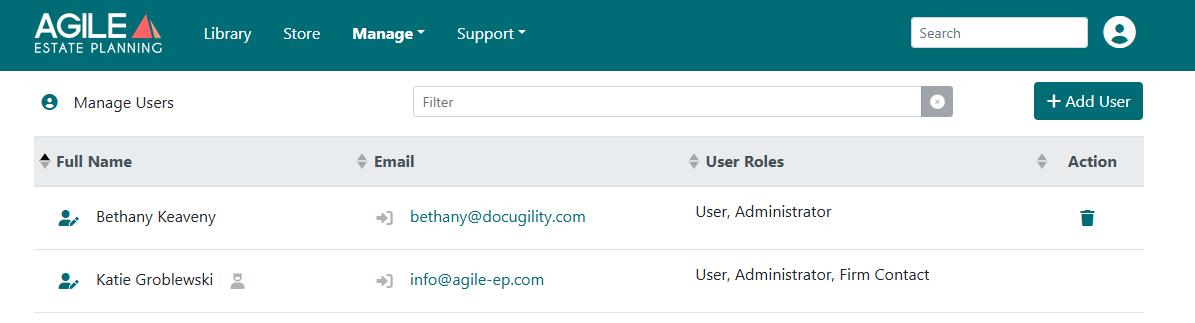
Each row represents a user on your account and includes:
Full Name – The user’s name as entered in the system
Email – The email address used for their account login
User Roles – The permissions assigned to that user (such as User, Administrator, or Firm Contact)
Action – The trash icon allows an Administrator to remove a user
At the top of the page, you’ll also see:
A filter field to quickly locate a specific user
An + Add User button to create a new user login
Only users with the Administrator role can add, edit, or remove users.
Adding Additional Users (If Applicable)
If more than one person at your firm will draft documents, you will need to add all of them as users.
- Navigate to Manage > My Users.
- Click Add User.
- Enter the user’s name and email address.
- Leave the External ID field blank (it is not required).
- Click Save.
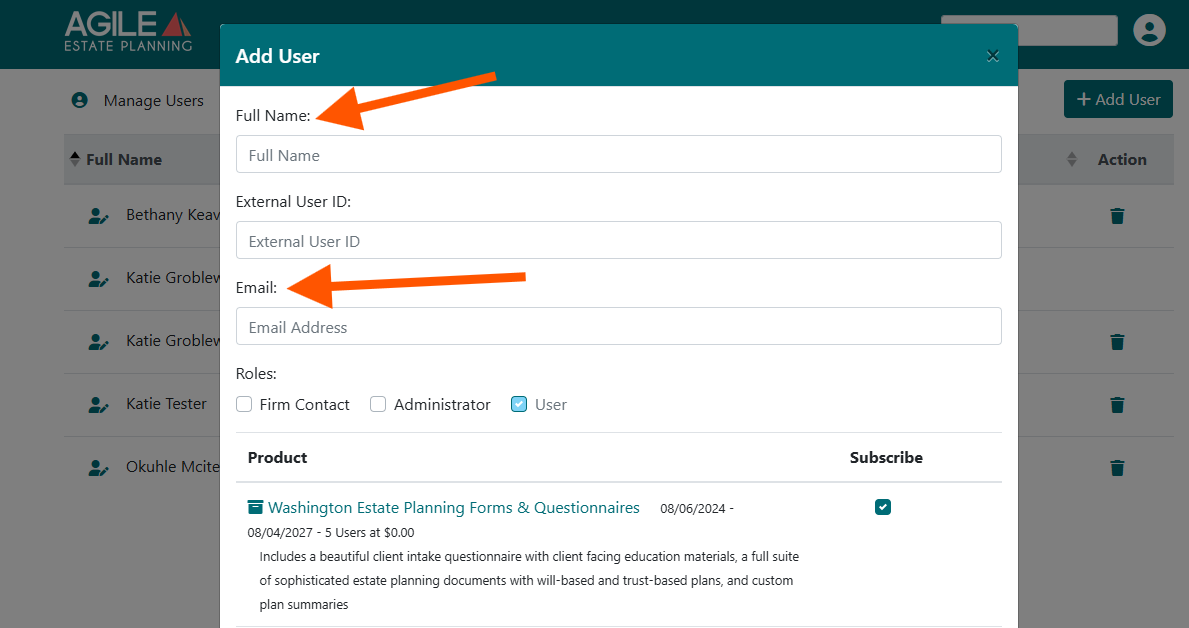
The new user will receive an email from Agile EP prompting them to set a password for their own access to the account.
Repeat these steps for each additional drafting user.
Assign Subscriptions to All Users
After users have been added, subscriptions must be assigned in order to access templates in the Library.
Navigate to Manage > Subscriptions and locate the subscribed product. Click Assign Users.
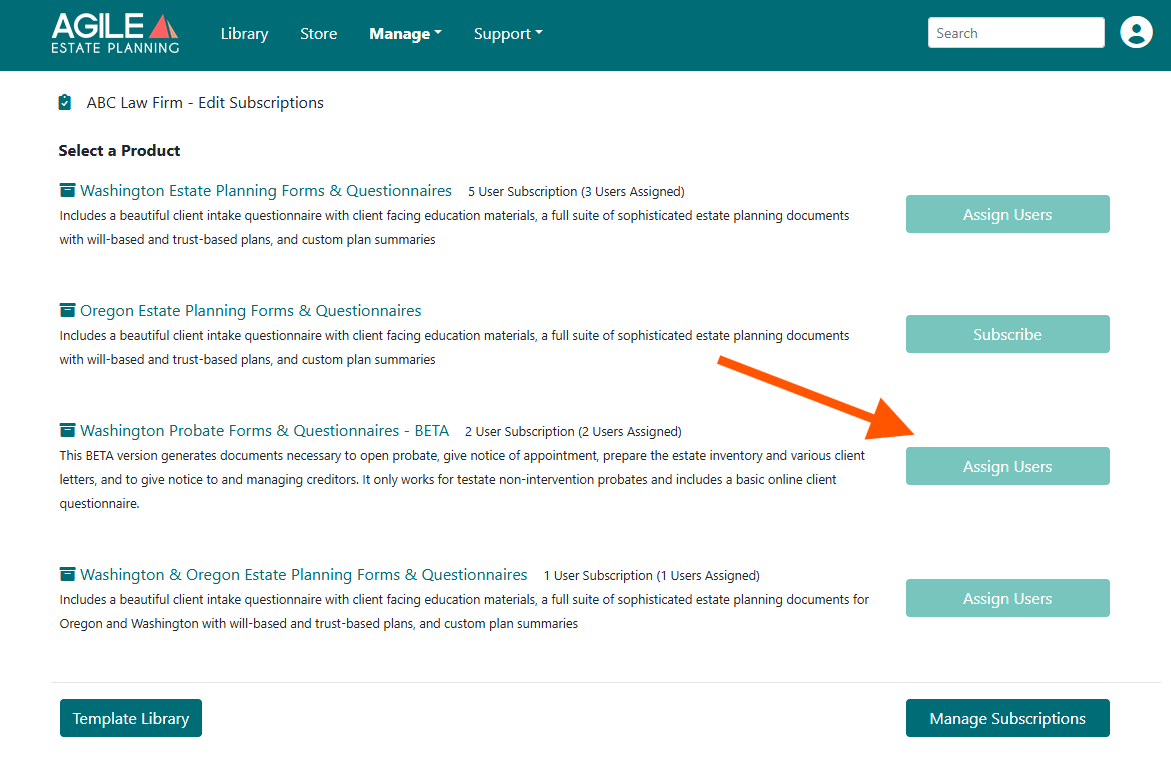
Assign the subscription to each user who will draft documents.
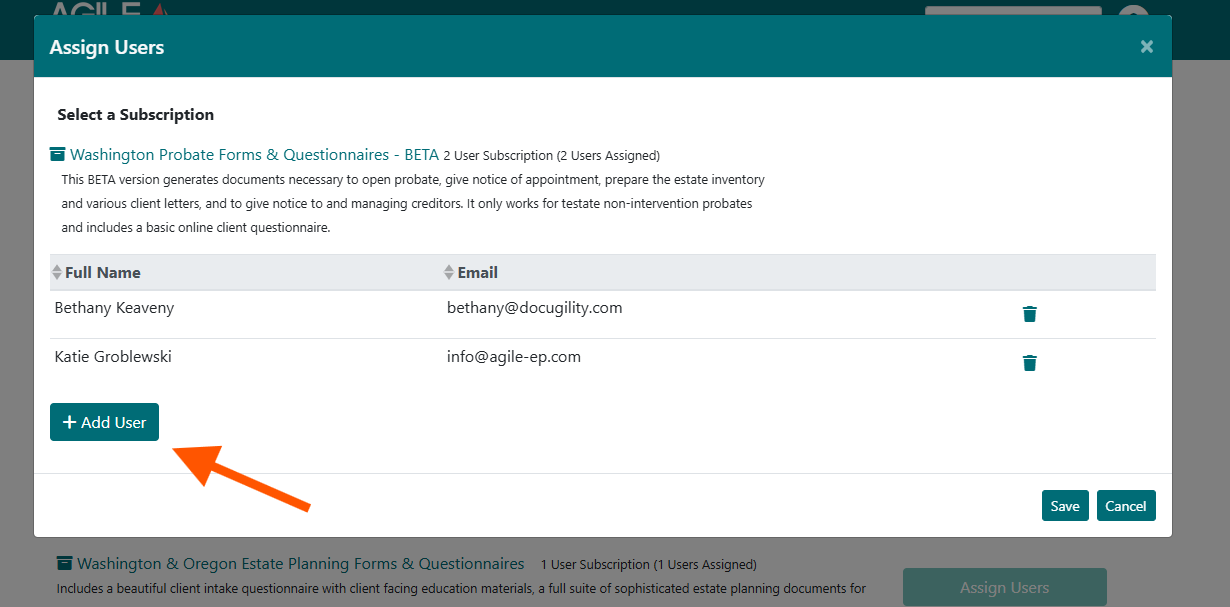
If you have enough user seats for your product, you will have a drop down menu of your account users to select and add to the product subscription.
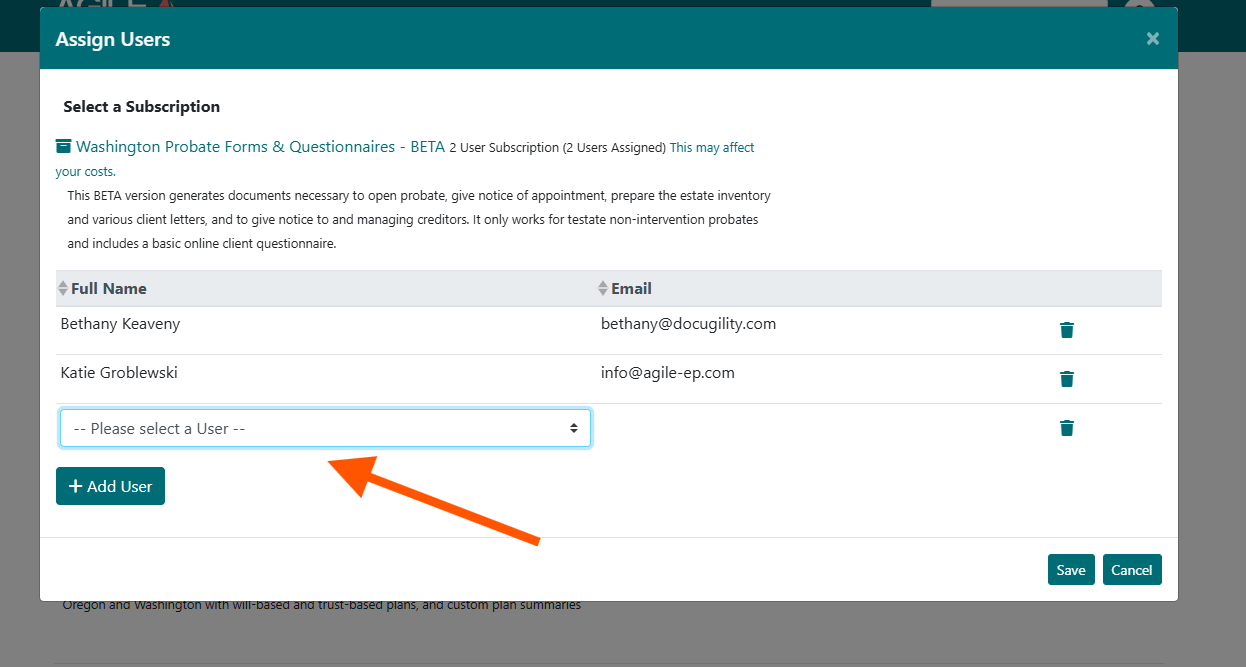
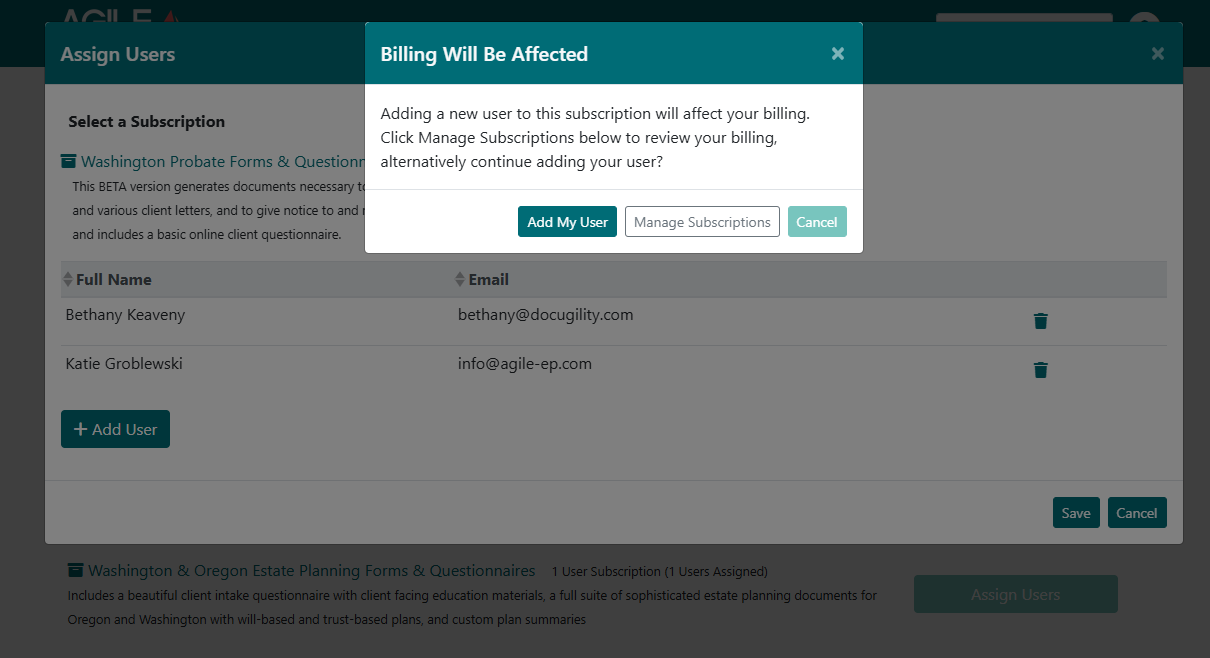
If you do not have enough user seats avialable for the product subscription you're trying to add to the user, then a box will appear prompting you to add the user and increase billing or to manage subscriptions.