

Before you begin drafting documents or sending questionnaires to clients, there are a few essential account settings to complete. These settings control how your documents assemble, how questionnaires function, how data is stored, and how your firm appears to clients.
Completing this setup at the outset will ensure a smooth drafting workflow and a consistent, professional client experience.
Step 1: Enter Firm Information and Document Defaults
Your Firm Information populates key details throughout the system and appears in many client-facing and assembled documents. This is the foundation of your account setup.
To access this section, go to: Manage > Firm Information
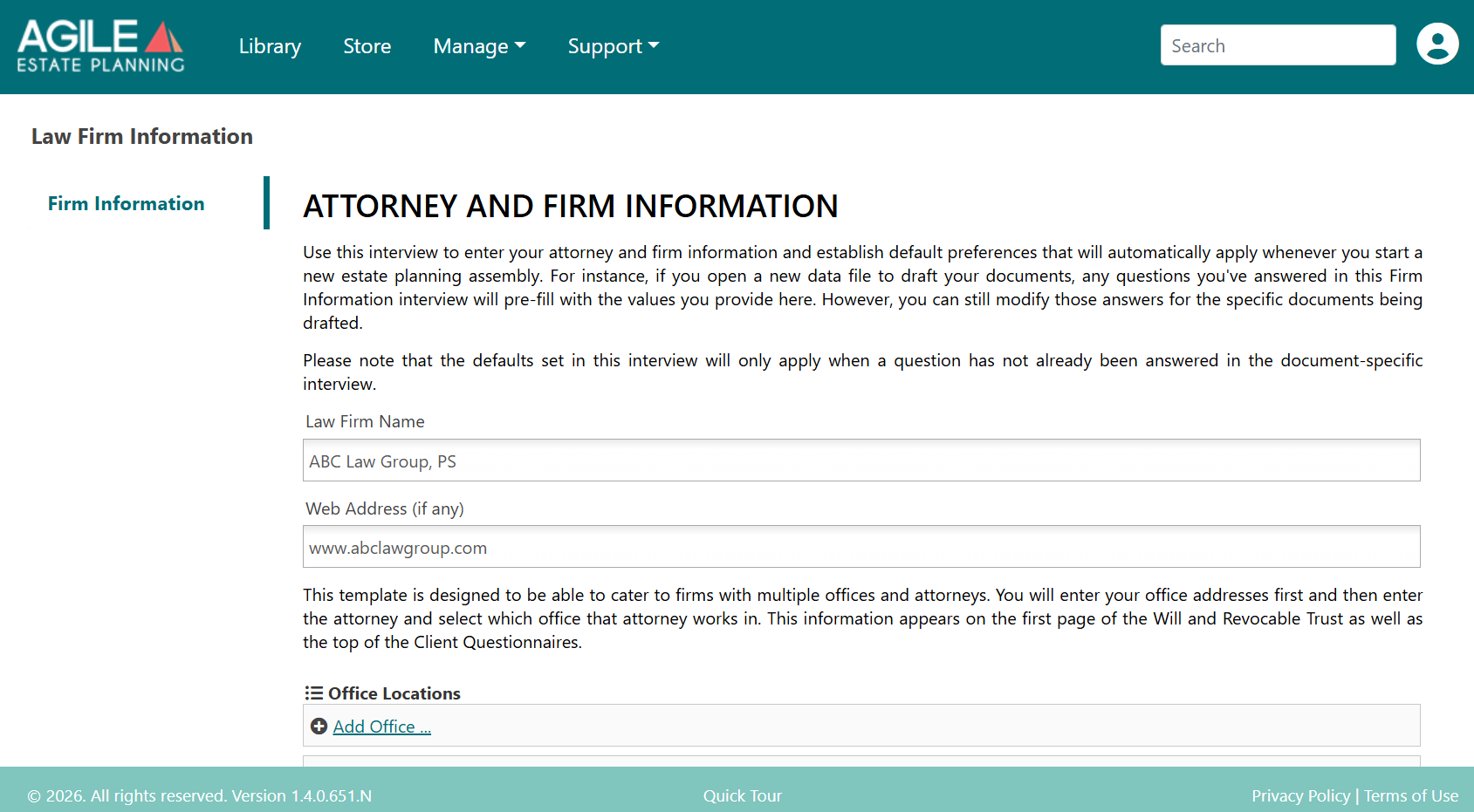
Firm Information
Enter your firm’s core details, including:
Attorneys
Office locations
Staff information
This data is reused across documents and workflows, reducing repetitive entry and helping ensure consistency in your firm’s output.
Only the Firm Administrator of any Agile EP account can enter or edit Firm Information. If your account has only one user, that user is the Firm Administrator by default.
Estate Planning–Only Settings
If your account includes the Estate Planning (EP) product, you will see additional configuration options labeled for estate planning users.
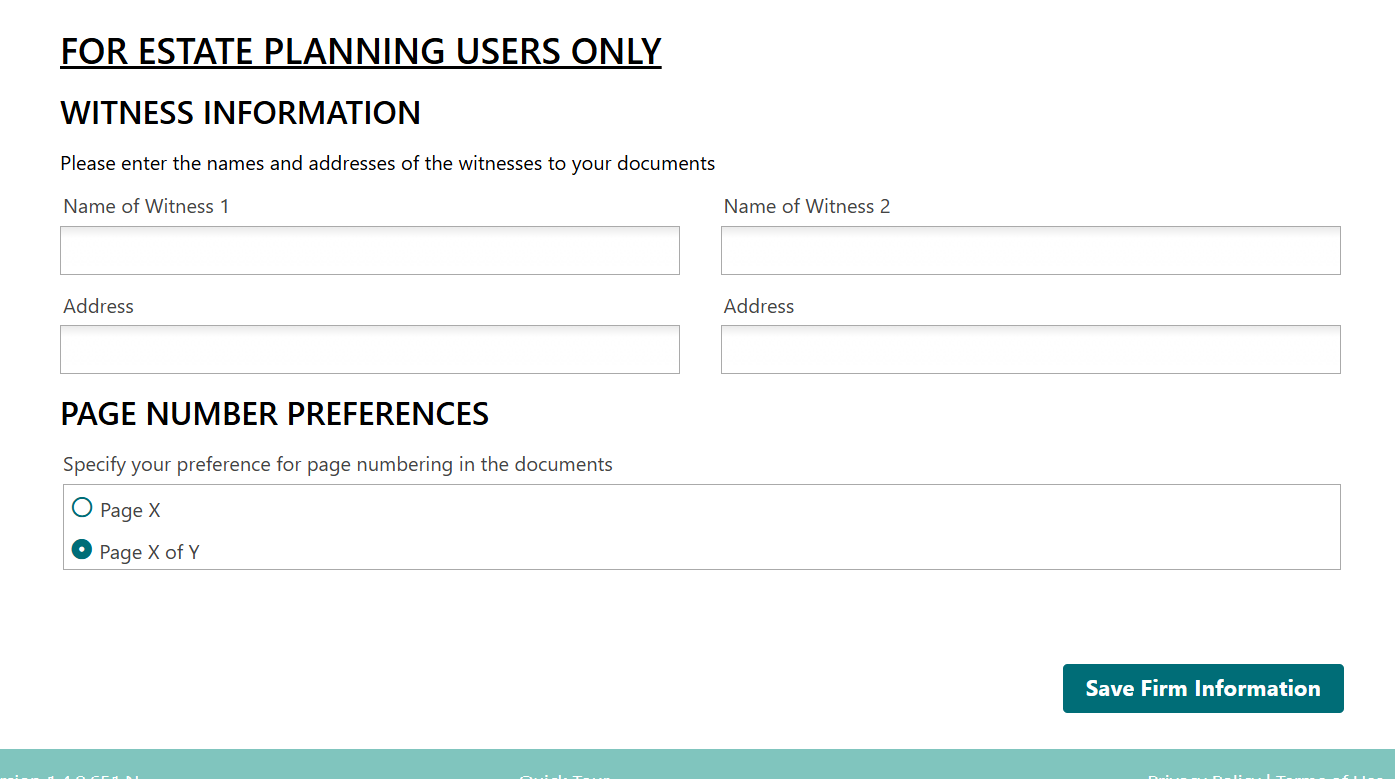
These optional settings include:
Witness Information
You may enter default names and addresses for up to two witnesses. This information can automatically populate estate planning documents that require witness blocks, helping streamline document preparation.
Page Number Preferences
You may choose your preferred page numbering format for estate planning documents:
Page X
Page X of Y
This preference applies to EP-generated documents and helps maintain consistent formatting across your firm’s estate planning output.
Step 2: Configure Firm Settings
After completing your Firm Information, navigate to: Manage > Settings
These settings control how answer files are stored, how interviews are shared with clients, and how your branding appears in questionnaires. To ensure Agile EP functions properly for drafting and client-facing workflows, you must enable the following settings:
Allow Cloud Storage
Check this box to enable cloud storage for all answer files, whether data is entered:
Internally during a drafting interview, or
By a client through a shared questionnaire
This ensures that answer files are securely saved and accessible when needed.
Enable Shared Interviews
Check this box to allow questionnaires to be sent to clients for completion.
If this setting is not enabled, you will not be able to use client-facing questionnaires.
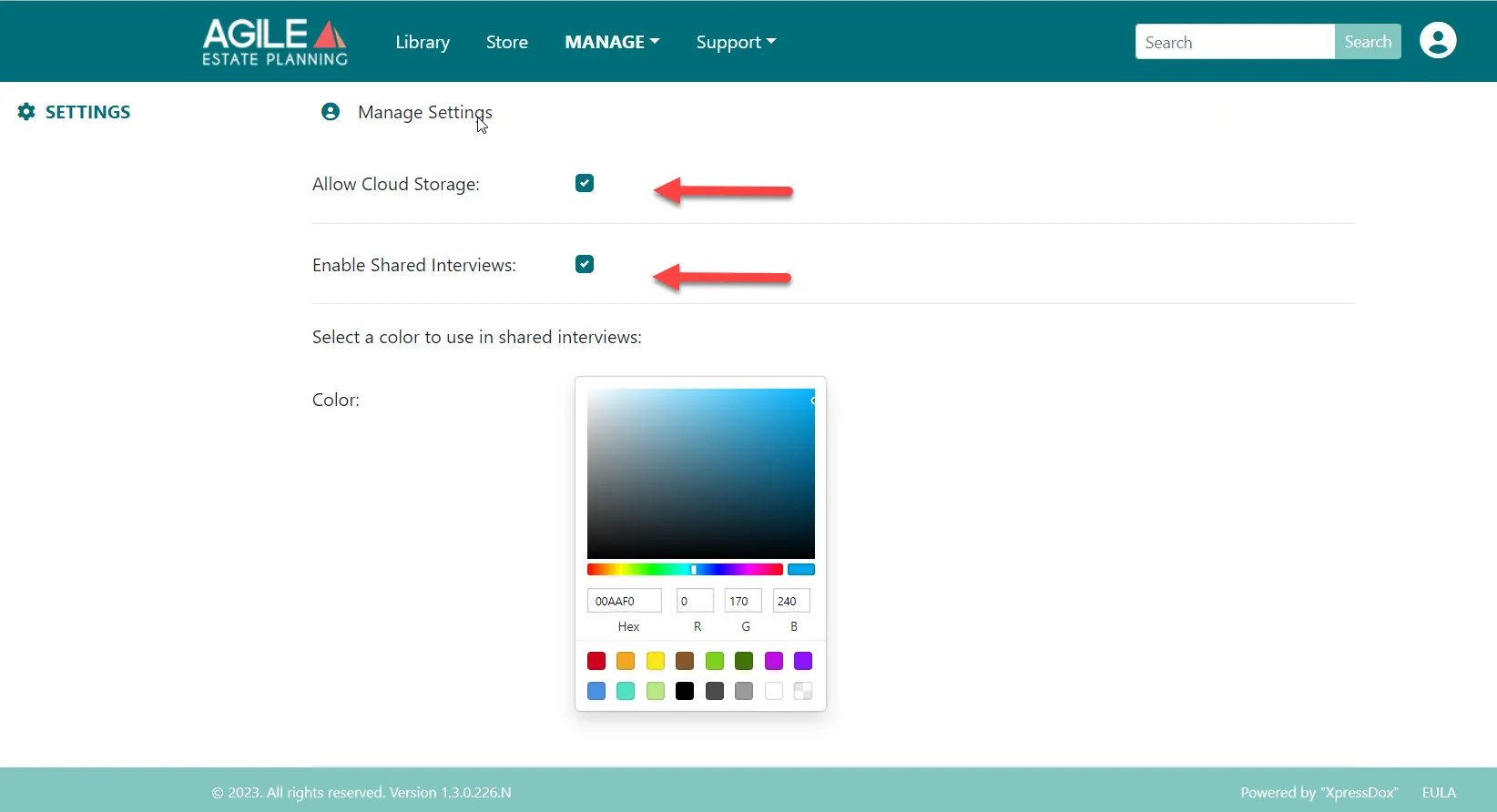
Both “Allow Cloud Storage” and “Enable Shared Interviews” must be enabled for normal client-facing questionnaire workflows.
Step 3: Configure Firm Branding
Your branding settings determine how questionnaires and interviews appear to clients. Proper configuration ensures a consistent and professional presentation.
Primary Color
Select a primary color or enter a hex color code that aligns with your firm’s branding. This color is used throughout the client questionnaire interface. For best on-screen readability, a darker primary color is recommended.
Firm Logo
Upload your firm’s logo in PNG format. Your logo will appear:
In shared interviews
In assembled questionnaire outputs
For best results, use a high-resolution PNG file to ensure clean rendering across devices and documents.
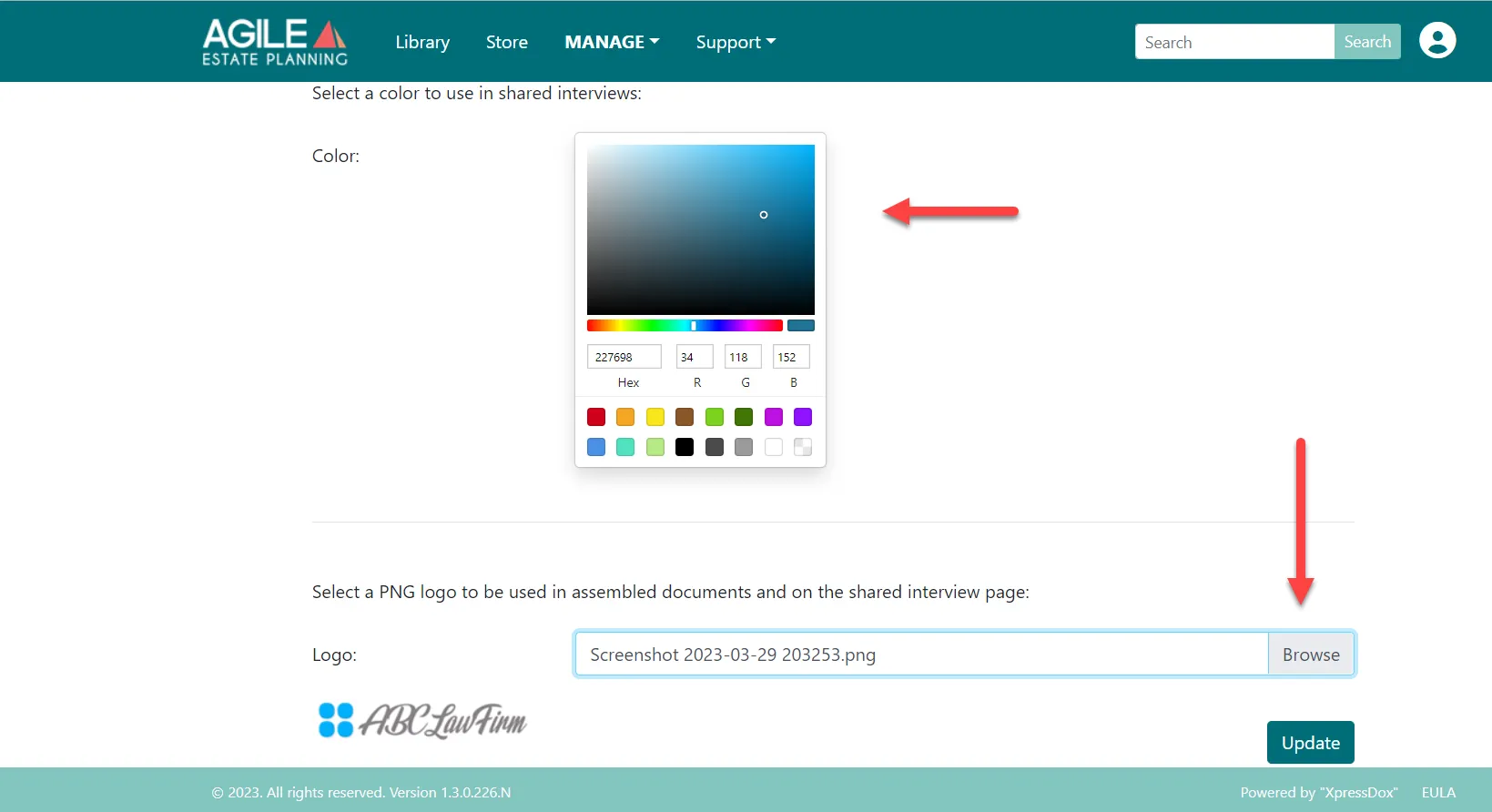
Tip: After setting your branding, send a questionniare internally to confirm that your logo and primary firm color appear as expected.
Video Walkthroughs
If you prefer a guided overview, watch the video below for a step-by-step walkthrough of completing these required account settings.
Full Setup Overview:
Firm Information & Firm Branding Settings: