Client questionnaires in Agile EP are started from their own templates in the Library. They are not launched from drafting templates and do not require you to begin a document draft first.
Sending a client questionnaire typically involves six steps:
- Start the questionnaire template from the Library.
- Configure sharing settings (recipient email, security, expiration).
- Choose whether clients can download the completed questionnaire.
- Customize the invitation email sent to the client.
- Customize the result page message the client sees after submission.
- Send the questionnaire link.
The sections below explain each step in more detail, or you can watch our video on this topic.
Selecting a Questionnaire
To start a questionnaire:
- Go to the Library
- Select the appropriate product
- Open the Client Questionnaires folder
- Select the questionnaire template you want to use
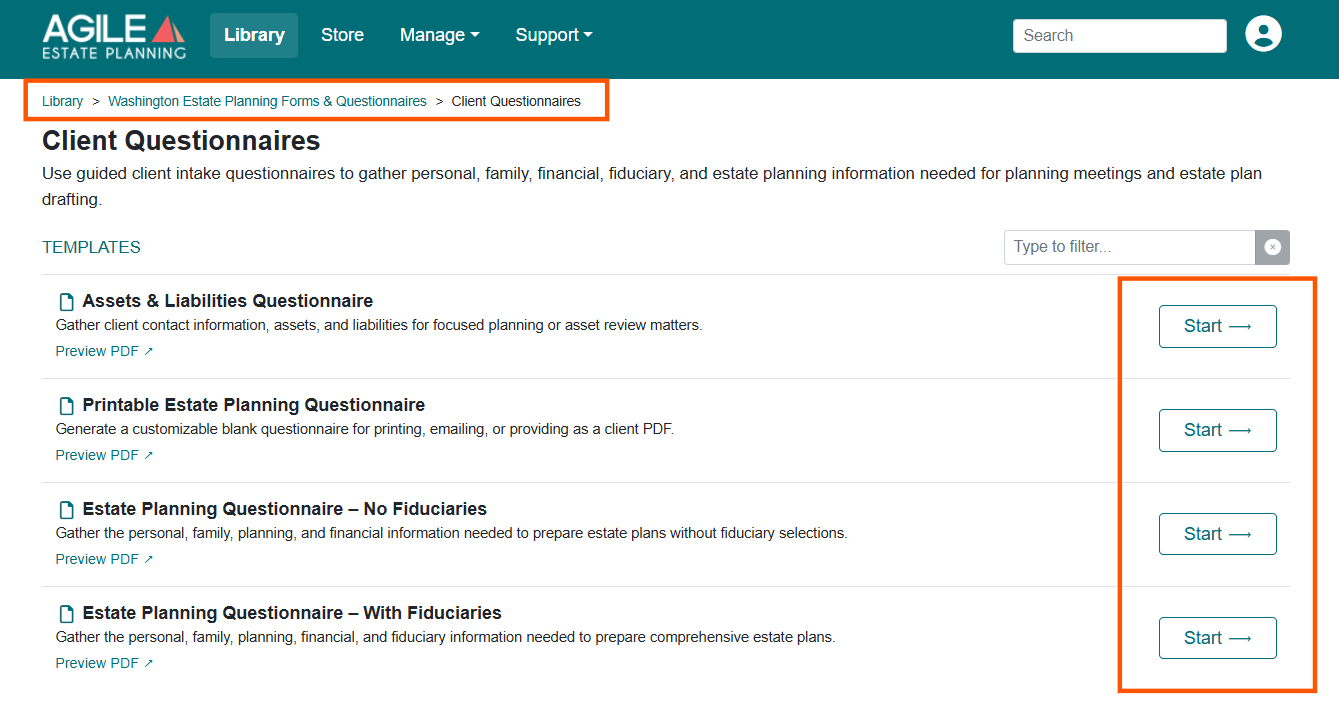
Depending on the product you’re a subscribed to, you may see multiple questionnaire options. These typically vary based on how much information you want to collect from the client, but for additional information about how to choose the right type of questionnaire, see this article.
After selecting a questionnaire template, you will be taken into the questionnaire interview. Important: this interview includes both internal setup steps and the client-facing portion of the questionnaire.
Start from a clean questionnaire
When you open a questionnaire template, Agile EP may automatically load the answers from the client questionnaire you worked on most recently. Not using the “New Data” button could result in inadvertently sharing client information.
A green message at the top of the screen reports that previous answers were loaded and offers a New Data button that clears them.
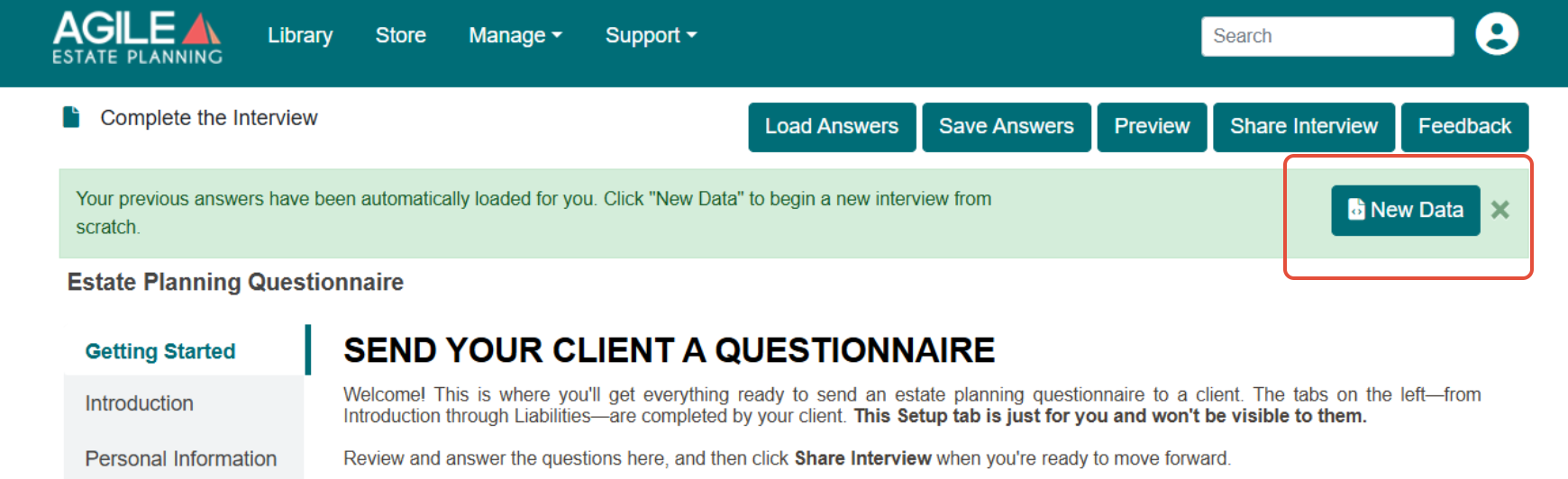
Click New Data before you configure and send, so the questionnaire does not reach your client already filled in with another client’s information. The message closes on its own after a few seconds, so if you are not certain whose answers are loaded, check the Client Information tab before you share the interview. See this article for more about how Agile EP stores and reuses client data.
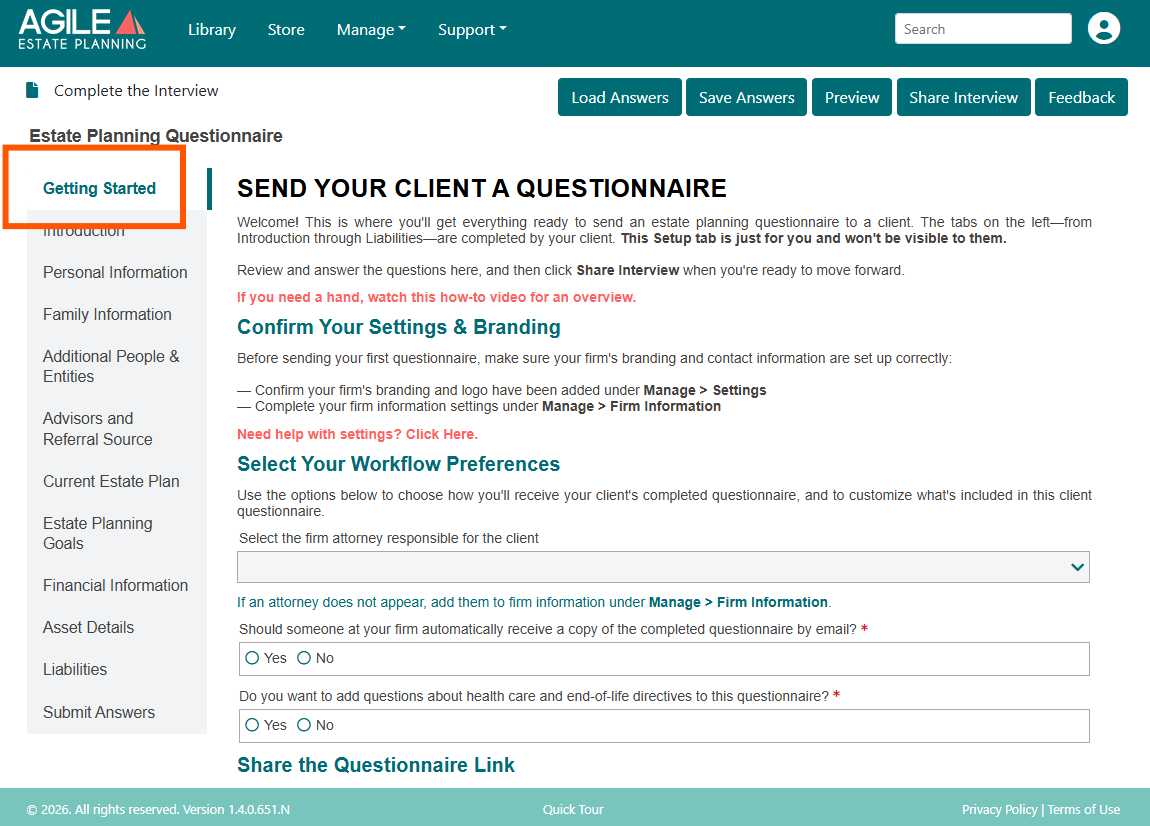
Begin on the Getting Started tab and follow the instructions provided.
Configure Recipient and Access Settings
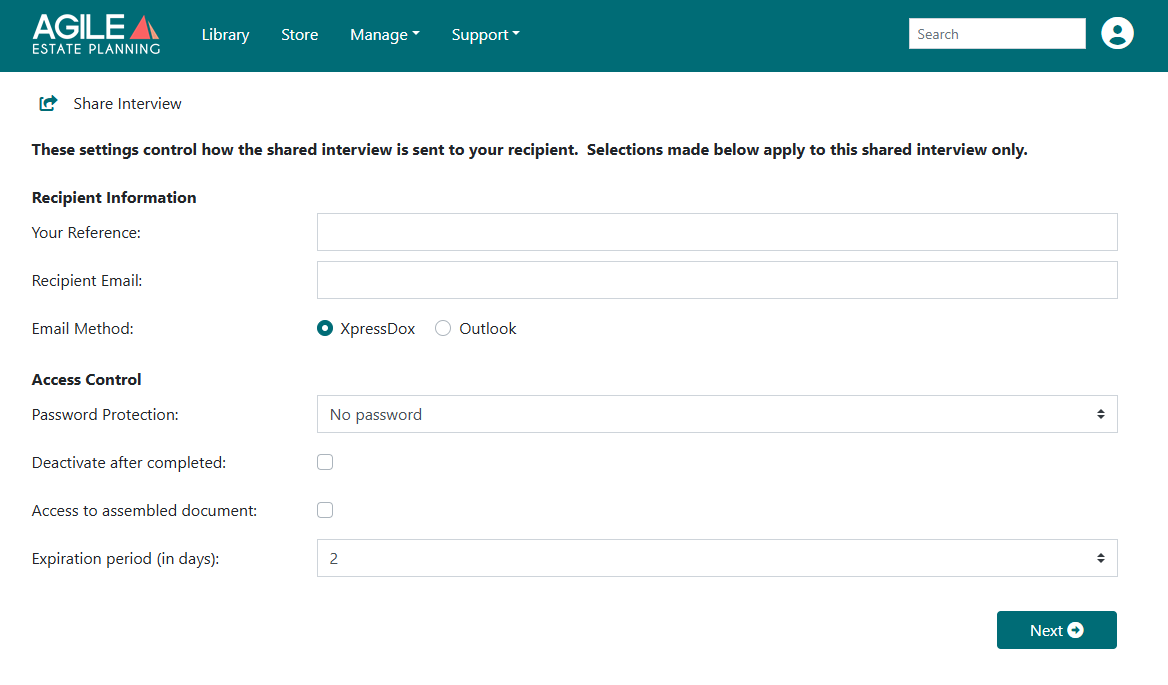
Click Share Interview to open the screen where you configure how the questionnaire is delivered and accessed. The settings on this screen apply only to this singular, shared interview.
Choose the Email Method
In these settings, you must choose how the questionnaire is sent.
- XpressDox: This choice sends the questionnaire directly from the Agile EP system
- Outlook: This choice opens a pre-populated email you can review and send through your outlook system.
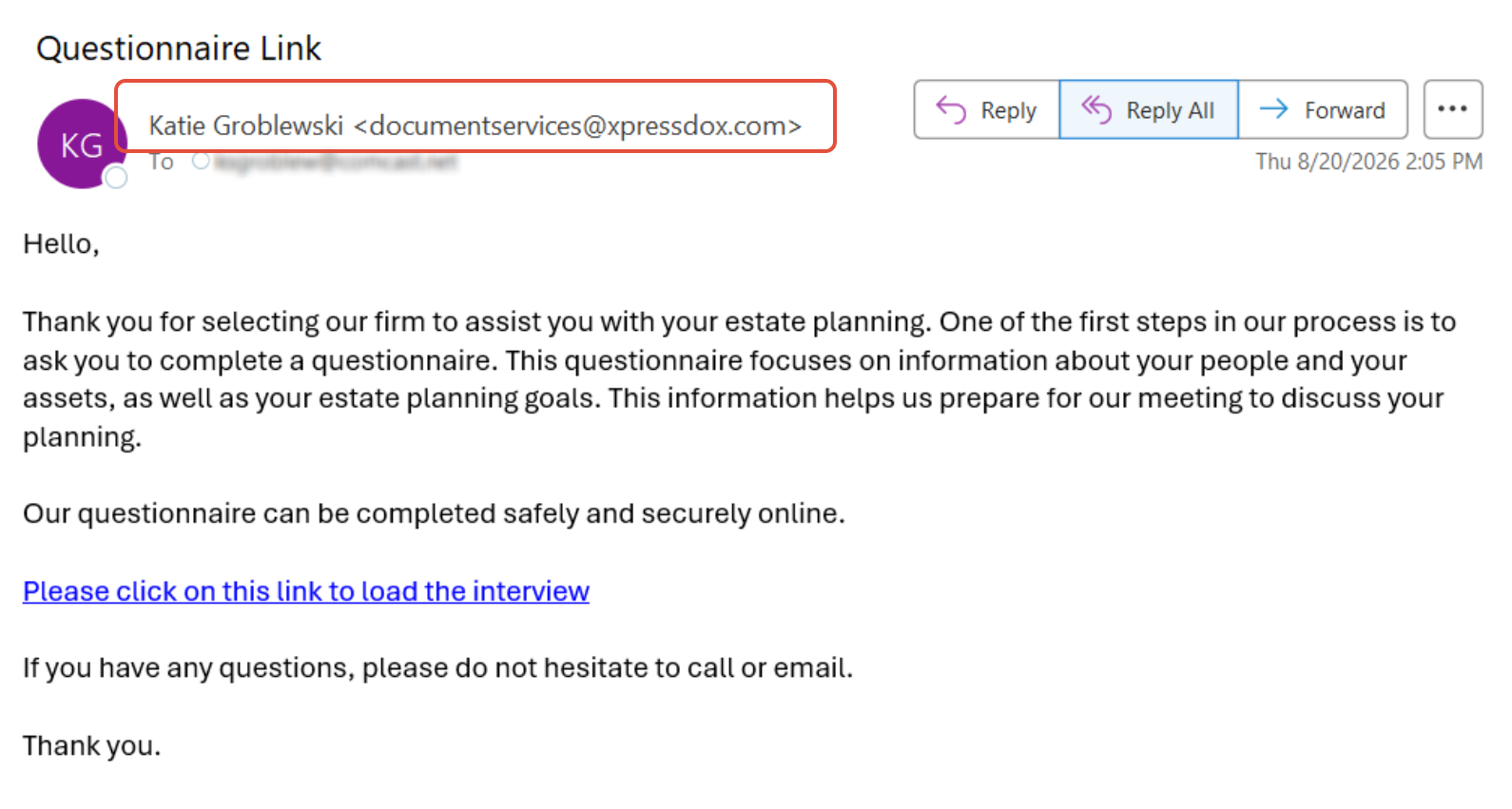
If you choose to email your clients via XpressDox, we recommend telling your client who the email comes from. When you send by XpressDox, the client receives the questionnaire link from “documentservices@xpressdox.com” with your name in the from line. Consider mentioning this in the email text, or telling the client to watch for it, so the message is not mistaken for spam. If the client does not see it, ask them to check their junk or spam folder.
Note for Mac users: When sending a questionnaire via Outlook, the downloaded email may open in Protected View due to Apple security settings. In this mode, the email cannot be edited or sent directly. To send the questionnaire, simply click Forward from the Protected View window and send it to your client from the forwarded message. Currently, there is no way to disable this behavior on Mac.
Access Control Settings
This section controls how long the questionnaire link remains active and what the client can access. The options include:
Password Protection – A dropdown that sets how the questionnaire is secured:
- No password – anyone with the link can open it. This is the default.
- Auto Generate PIN – the system creates a PIN that you pass on to the client.
- Password set by Recipient – the client creates their own password the first time they open the link, and uses it to return later.
- Deactivate After Completed – Prevents the client from reopening the questionnaire after submission
- Expiration Period – Limits how long the questionnaire link remains active in the client’s email
- Access to Assembled Document – Allows the client to download a styled PDF of their completed questionnaire after submission
Using a PIN or a recipient-set password? Tell the client in your invitation email.
The default questionnaire email does not mention a password, so to prepare your client, add a line such as: “Before you begin, you’ll set a password to protect your questionnaire. You’ll use it if you come back to finish later using the link in this email.”
Important: Access to Assembled Document
If Access to assembled document is enabled, the client will be able to download a copy of their completed questionnaire after submitting it.
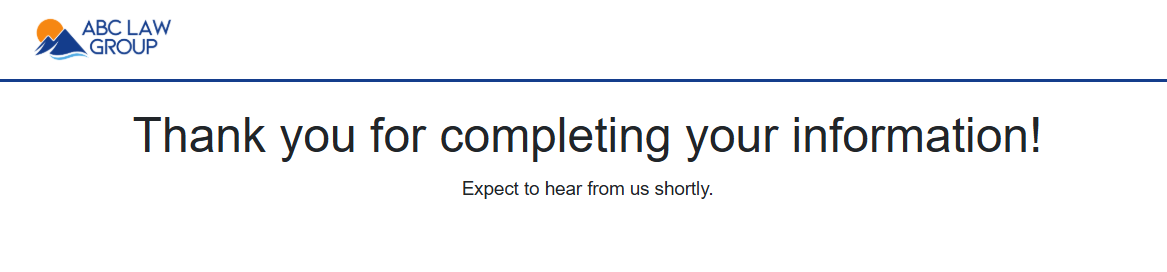
Because of this, you should adjust the Result Page message (the message shown after submission and described further below) so it tells the client they can download their completed questionnaire. If this option is not enabled, the client will not see a download option.
Customize the Invitation Email
After configuring recipient and access settings, you will be taken to the Invitation Email Message screen. This screen controls the content of the email used to deliver the questionnaire link.
You may edit the Default email text directly, save it as a reusable template, or create multiple templates for different client scenarios. Available actions include:
- Save Template – Save changes to the current template
- New Template – Create a new email template
- Delete Template – Remove an unused template
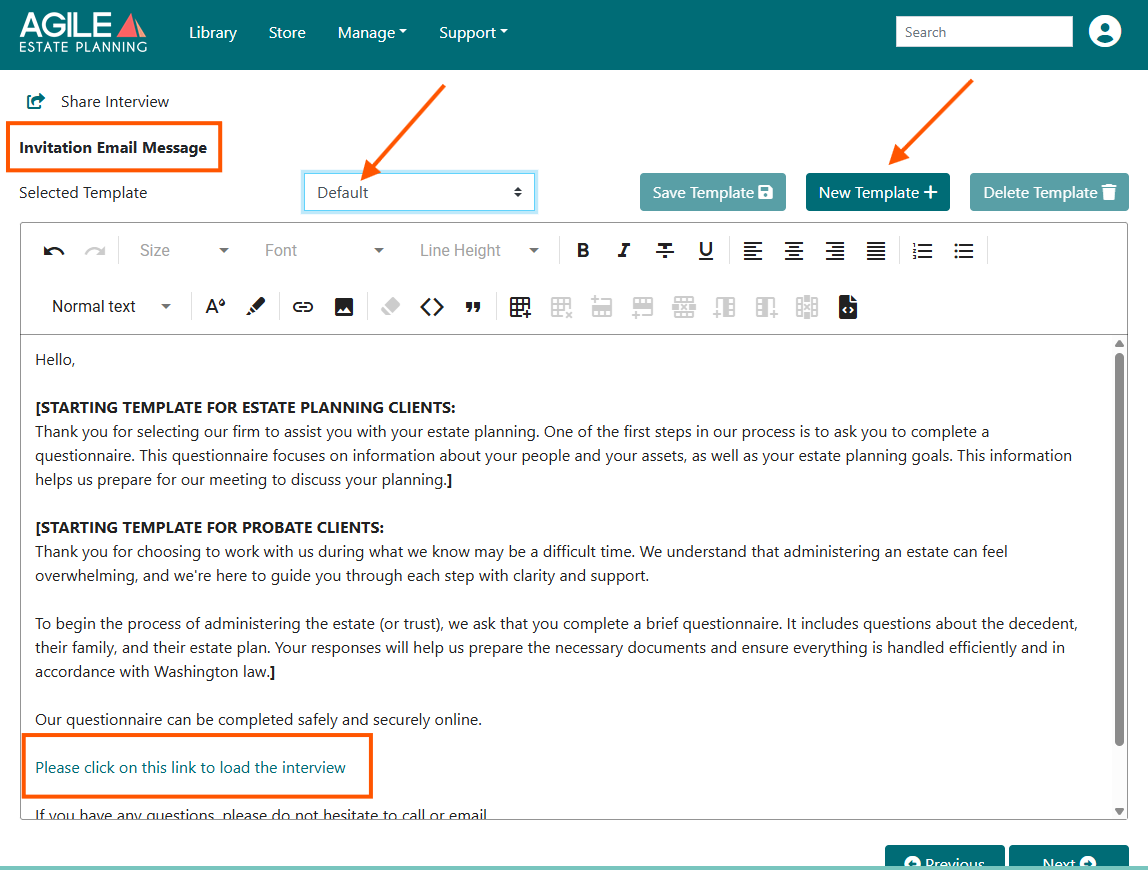
The colored link in the message is the secure questionnaire link the client will use. It is very important to keep that link intact as it is unique to this client’s questionnaire. It cannot be copied and added to an outside email.
Configure the Completion (Result Page) Message
Next, you will see the Result Page Message screen. This controls what the client sees after they submit the questionnaire.
You may:
- Use the default confirmation message, or
- Customize the message to reflect your firm’s tone and next steps
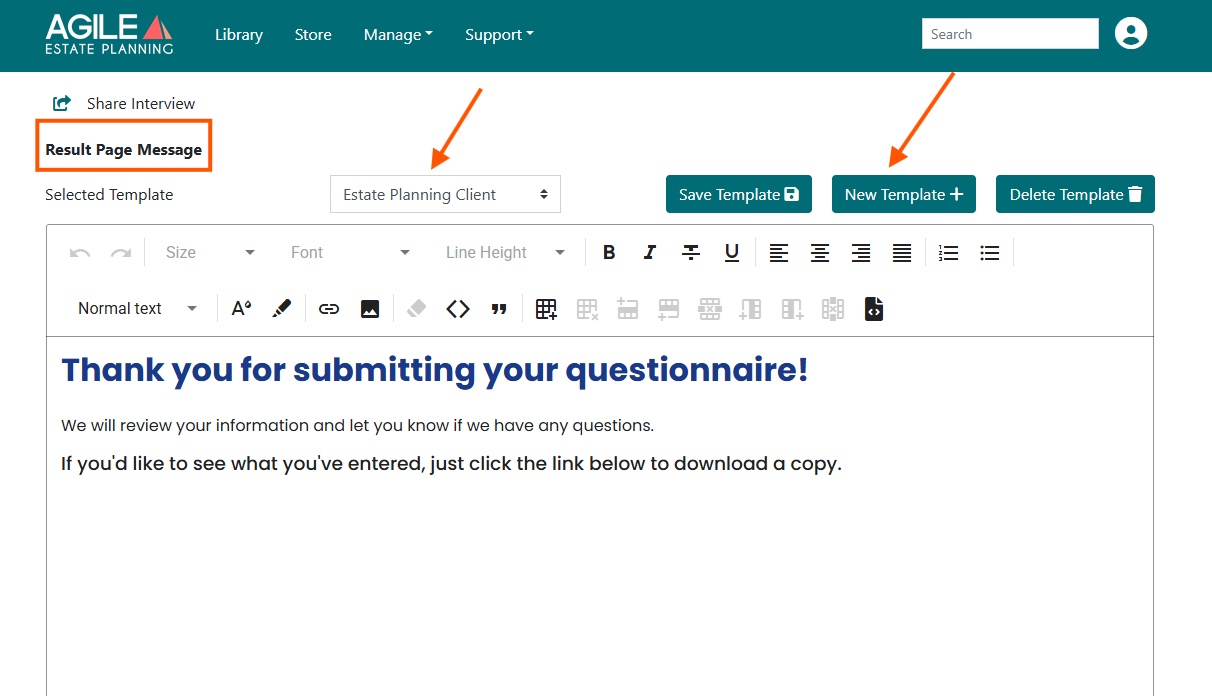
This page typically thanks the client for completing the questionnaire and sets expectations for what happens next (for example, that your firm will follow up).
Adjusting the Message if Clients Can Download the Questionnaire
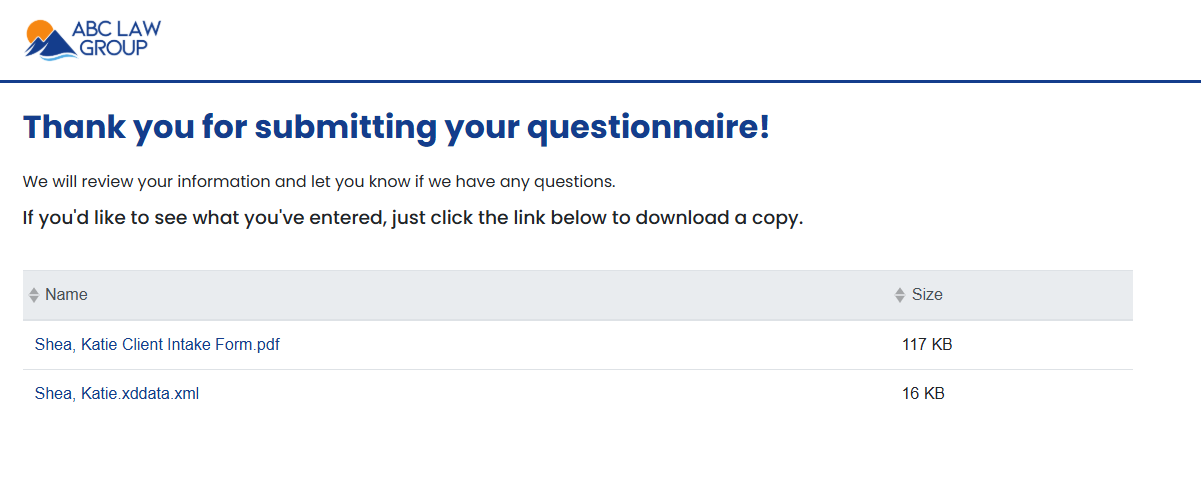
If Access to assembled document was enabled in the Access Control settings, the Result Page message should inform the client that they can download a copy of their completed questionnaire from the page.
For example, instead of saying:
Thank you for completing the questionnaire. We will review your responses and be in touch.
You may want to say something like:
Thank you for completing the questionnaire. If you would like a copy of your responses, you may download the completed questionnaire below. Our office will review your information and follow up shortly.
Example of what the client sees after submission with access to the assembled document:
Example of what the client sees after submission without access to the assembled document:
Send the Questionnaire
Once the invitation email and result page message are finalized, click Share Interview. Clicking Share Interview sends the questionnaire link to the client using the selected email method.
After the questionnaire is sent, no further action is required from you until the client completes it.