
When you share a questionnaire link with a client, they are taken to a secure, browser-based interview. No login or Agile EP account is required. This article explains what your client sees and how the questionnaire experience works.
The Password Protection setting you choose when sharing changes what the client sees when they open the questionnaire and when they return to it later.
Opening the Questionnaire
When a client receives the questionnaire invitation email:
They click the secure link in the message.
They enter or create a password, if your Password Protection setting calls for one.
The questionnaire opens directly in their browser.
Clients do not need to create an account or log in to access the interview.
What the Password Protection setting produces
Your Password Protection choice determines what the client sees at this point:
- No password. The questionnaire opens immediately.
- Auto Generate PIN. The client is asked for the PIN. Send it to them separately, because it does not appear in the invitation email.
- Password set by Recipient. The client is asked to create a password and confirm it, then continues into the questionnaire.
The Client Interface
From the client’s perspective, the questionnaire appears as a guided interview. Here's an example of the opening screen for a client:
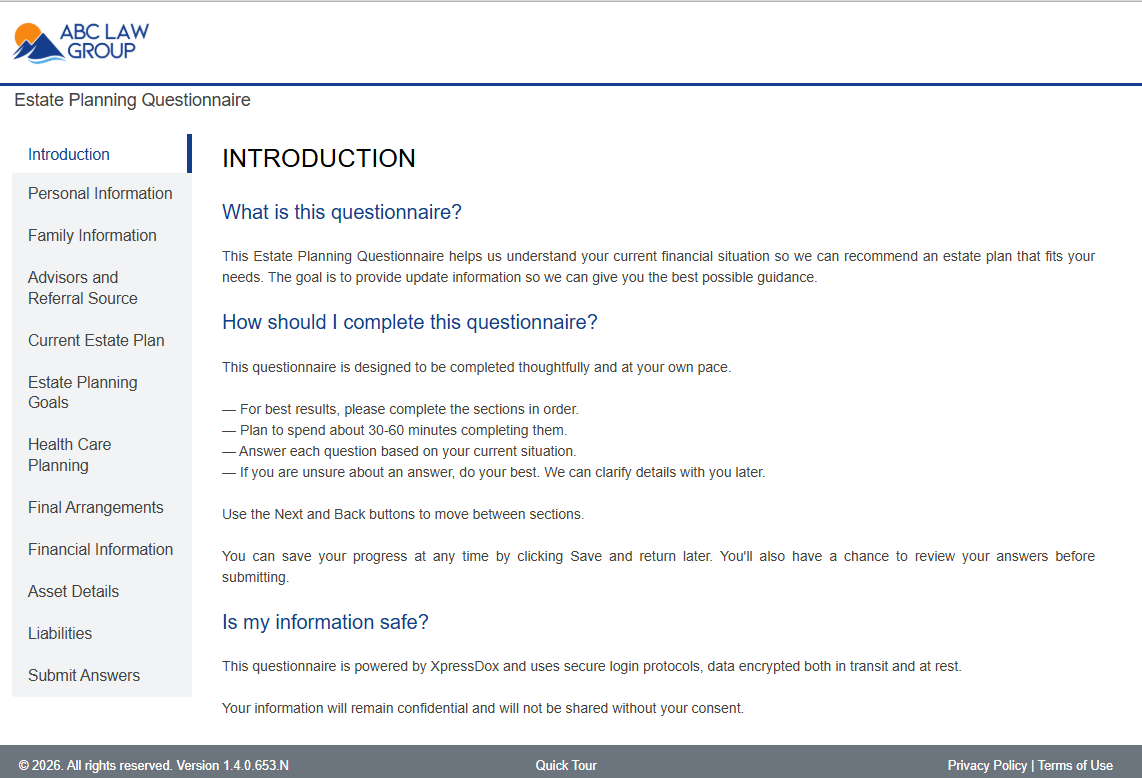
Clients will see:
Your firm’s logo and primary color
Questions presented one section at a time
Simple navigation buttons (Next and Back)
Automatic progress saving as they move through the interview
Clients only see the sections intended for them. Internal configuration settings, drafting tools, and administrative screens remain hidden.
Saving Progress
Clients can save their progress at any time by clicking Save Answers. The system also automatically saves responses approximately every 60 seconds, so clients rarely lose work even if they close the browser.
If a client needs to return later, they click the original email link to reopen the questionnaire with their previously entered information.
What they see when they return depends on the Password Protection setting:
- No password: the questionnaire reopens immediately.
- Auto Generate PIN: they enter the PIN again.
- Password set by Recipient: they enter the password they created. If they have forgotten it, share a new questionnaire link with them; the password cannot be recovered.
You can monitor questionnaire status at any time in Manage > Shared Interviews. For more on monitoring and managing questionnaires, see this article.
Navigation and Completion
As clients work through the questionnaire, they will:
Complete sections such as personal information, assets, and liabilities
Move through the interview using Next and Back
Submit the questionnaire once finished
Depending on how you configured the share link, the questionnaire may include:
An expiration date
Automatic deactivation after submission
If deactivation is enabled, the link will stop working once the questionnaire is submitted.
After the Client Submits Their Questionnaire
Once the client submits the questionnaire:
They see the completion message you configured
Their responses are securely saved in your Agile EP account
They cannot edit their answers unless you send a new questionnaire link
Depending on the settings you selected when sending the questionnaire, the client may also be able to download a copy of their completed questionnaire. If this option is not enabled, the client will not have access to download the questionnaire after submission and you will need to email them a copy of the completed PDF output.
The client is not asked for the password again at this point. They go straight to your completion message in the same session.
Learn more about sending a questionnaire and how various settings impact the client experience in this article.
Built-In Client Support and Education
Throughout the questionnaire, clients have access to embedded support and educational content designed to help them complete the interview confidently. Attorneys can review this client-facing support content in the client help center.
This includes:
Section-by-section guidance explaining what information is requested
Clarifying instructions to reduce confusion
Links to short educational articles about estate planning concepts
Plain-language explanations of roles, decisions, and planning topics
These resources appear directly alongside the questions, allowing clients to access helpful information at the moment they are making decisions.
This built-in support helps:
Reduce back-and-forth clarification emails
Improve the completeness and accuracy of responses
Increase client confidence during the intake process