
If you open a drafting template or a client questionnaire and it already contains information belonging to a different client, Agile EP has automatically loaded the answers from the interview you worked on most recently. This is expected behavior, and none of your saved work has been lost or overwritten.
The interview holds your most recent answers so you can pick up work in progress after a dropped connection or a closed browser tab. That same behavior is what places a previous client’s answers in a new interview.
What You Will See
When this happens:
- The interview opens already filled in, showing the wrong client’s names, family details, or other entries.
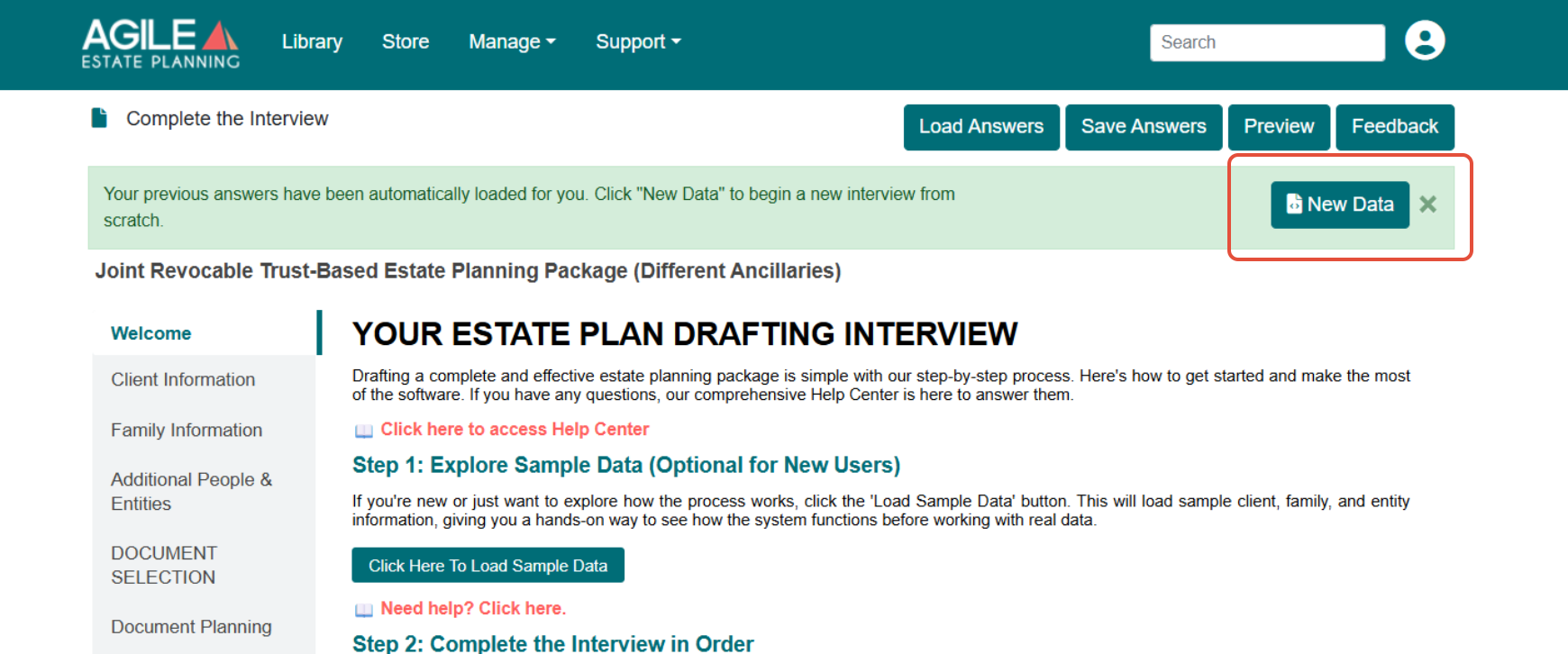
- A green message appears at the top of the screen reporting that your previous answers were loaded, with a New Data button beside it.
- The message closes on its own after a few seconds, and it can also be dismissed with the X at its right edge, so it may no longer be on screen by the time you notice the data.
For example:
What To Do
- Click New Data in the green message. This clears the loaded answers and begins a new interview from scratch.
- Confirm the interview is empty by opening the Client Information tab.
- Enter the information for the client you intend to work on.
Clicking New Data clears the answers currently loaded in the interview. It does not delete an answer file you have already saved. Saved answer files remain in the Answer Files window and can be brought back with Load Answers.
If the Green Message Has Already Closed
If the message is no longer on screen, you can still start clean:
- Return to the Library and start the template again. The message reappears when the interview opens, and you can click New Data before you begin.
- Or click Load Answers and select the answer file for the client you intend to work on, which replaces the information currently in the interview.
If You Have Already Sent a Questionnaire
If a client received a questionnaire that opened with another client’s answers already filled in:
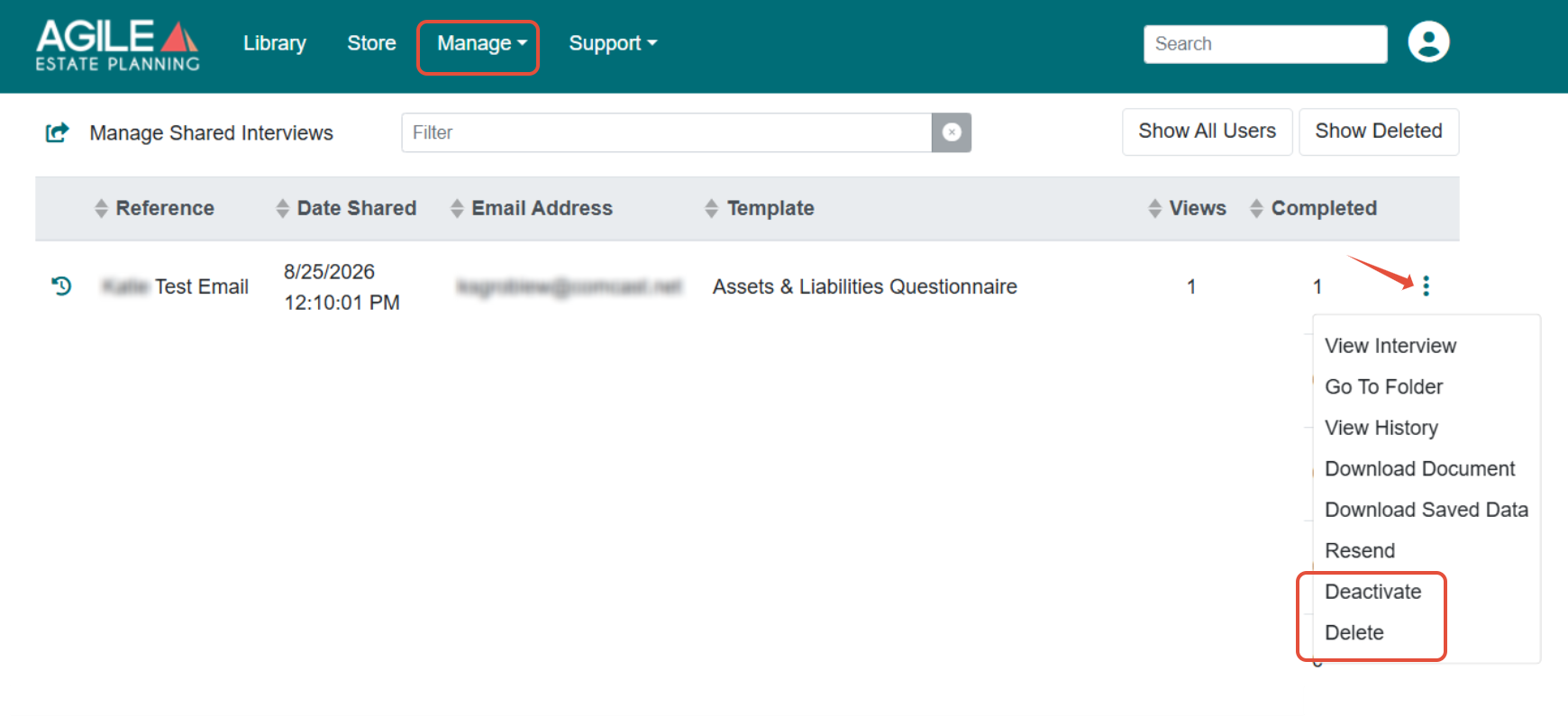
- Open Manage > Shared Interviews and deactivate or delete the questionnaire you sent, so the client cannot continue working in the pre-filled interview.
- Start the questionnaire template again and click New Data before you configure it.
- Share a new link with the client. See this article for the full sending workflow.
If the Information Still Appears
- Save your answers and refresh the browser.
- Log out and back in.
- Start the template from the Library rather than reopening an older browser tab.
If the issue persists, contact support and include:
- Template package name
- Matter name
- Screenshot of the interview
- Browser type
For more about how Agile EP stores and reuses client information between interviews, see this article.