

If you are unable to preview documents in Agile EP, the most common cause is your browser blocking pop-ups. Document previews open in a new browser window or tab. If pop-ups are blocked, nothing will appear — or it may seem like the preview button isn’t working. Allowing pop-ups for Agile EP typically resolves the issue right away.
Below are instructions for the most common browsers.
Google Chrome
Often, Chrome will display a small pop-up blocker icon in the address bar when a preview is blocked.
You can:
Click the pop-up blocker icon in the address bar
Select Allow pop-ups from this site
Refresh the page and try again

If you prefer to update settings manually:
Open Chrome.
Click the three dots in the top-right corner.
Select Settings.
Click Privacy and security.
Select Site settings.
Scroll down and click Pop-ups and redirects.
Under Allow, click Add.
Enter: Add [.]xpressdox.com (this means it will allow all pop ups from this domain)
Microsoft Edge
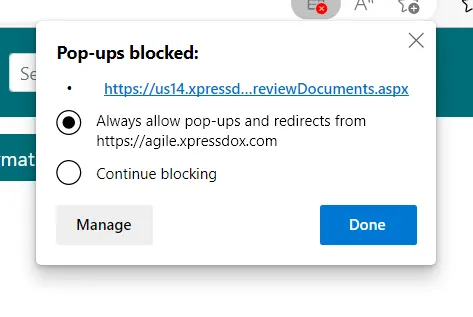
Often, Edge will display a small pop-up blocker icon in the address bar when a preview is blocked.

You can:
Click the pop-up blocker icon in the address bar
Select Always allow pop-ups and redirects from https://agile.xpressdox.com
Click Done and then refresh the page and try again
If you prefer to update settings manually:
- On your computer, open Edge.
- At the top right, click “Setting and more…” button (or click Alt + F).
- Click Settings
- Click “Cookies and site permissions”.
- Find “All permissions” section.
- Click on “Pop-ups and redirects”.
- Under “Allow” click on the “Add” button.
- Add [.]xpressdox.com (this means it will allow all pop ups from this domain)
Firefox
When blocking a pop-up, Firefox displays an information bar (if it hasn’t been previously dismissed – see below), as well as an icon in the address bar.

Click the notification or address bar icon and choose to allow pop-ups for the site.
For additional detailed instructions, see Mozilla’s help article:
Pop-up blocker settings, exceptions and troubleshooting | Firefox Help (mozilla.org)
Safari
To allow pop-ups in Safari:
Open Safari.
Go to Safari > Settings (or Preferences).
Select the Websites tab.
Click Pop-up Windows.
Locate
agile.xpressdox.comand select Allow.You may also set When visiting other websites to Allow if appropriate.
After updating the setting, refresh the page and try again.
Still Not Working?
If you’ve updated your pop-up settings and previews are still not appearing, try:
Refreshing the page
Logging out and back in
Restarting your browser
If the issue continues, contact support and let us know which browser you’re using so we can help quickly.
Agile Estate Planning is designed to be compatible with all browsers except Microsoft Internet Explorer 11. For best results, ensure your browser is up to date before using the system. (Most browsers auto-update, but you may want to double check your browser settings to be sure.)
Video Walkthrough
If you prefer a guided overview, watch the video below for a step-by-step walkthrough of troubleshooting this issue.