

Your payment methods, billing details and invoice history all live in the billing portal. To open it, go to Manage > Subscriptions and click Billing, Seats & Cancellation.
The portal opens on the Agile Estate Planning Customer Portal page. It looks different from the rest of Agile EP because billing runs through Stripe, our payment processor. Return to Agile Estate Planning at the top left brings you straight back to Agile EP’s drafting platform.
Updating the Payment Method for a Subscription
The portal lists your active subscriptions along with details like pricing and the current payment method on file.
- Locate the subscription you want to update.
- Click the pencil icon next to the listed payment method.
- Select an existing card or add a new one.
- Click Update to save.
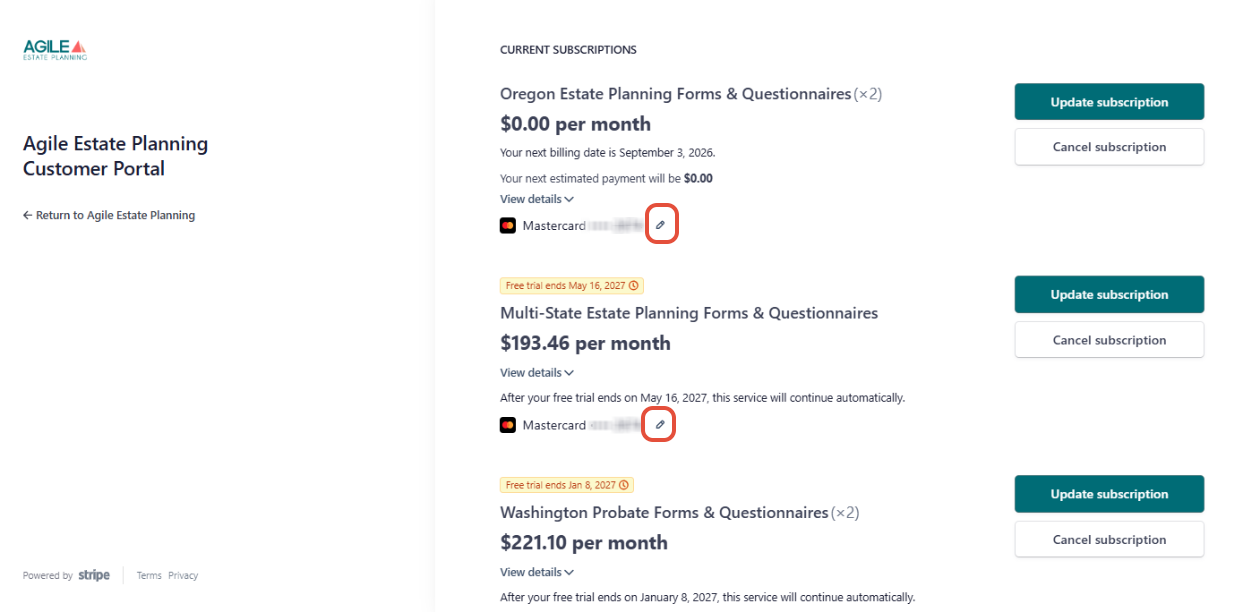
Your updated payment method will be used for all future billing on that subscription.
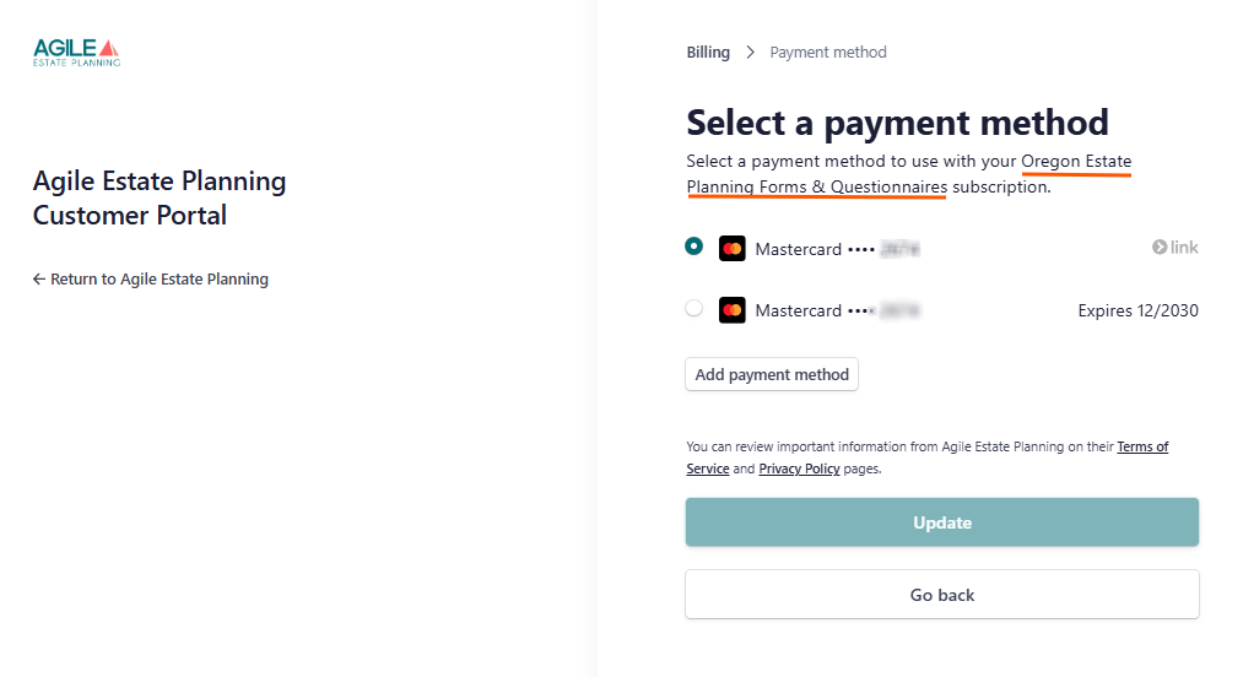
Payment methods are set per subscription
If your firm holds more than one subscription, changing the card on one does not change it on the others. Repeat these steps for each subscription you want to move to the new card.
Adding and Removing Stored Cards
Further down the portal, below all of your existing subscriptions, the Payment Methods section lists every card stored on your account, with the last four digits and the expiry date.
- + Add payment method stores a new card without assigning it to anything. You can then select it when updating a subscription.
- The … menu beside a card holds that card’s options.
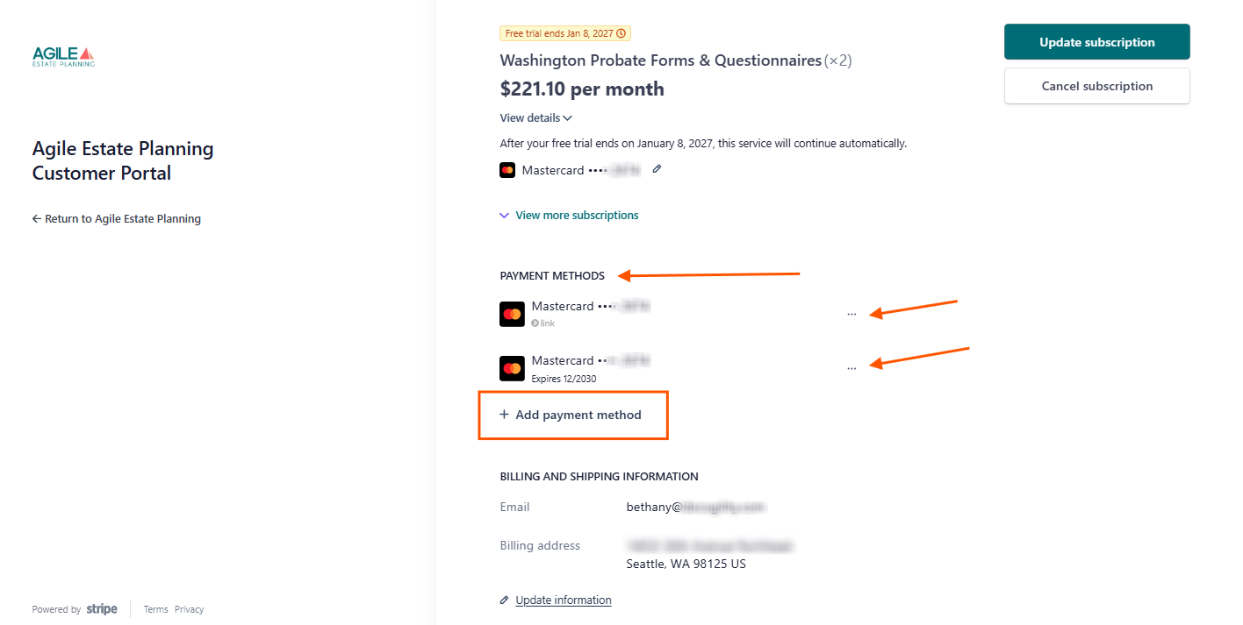
Setting a default does not move your existing subscriptions
The default card is used for new subscriptions, and for anything that does not already have a card of its own. A subscription where you have already set a card, using the steps above, keeps that card.  To move an existing subscription to a different card, change it on that subscription rather than relying on the default.
Updating Your Billing Information
Directly below Payment Methods is the Billing and Shipping Information, which holds the email address your receipts are sent to and the billing address that appears on your invoices. Click Update information to change either.
This email is not the same as your Firm Contact
The billing email here is where receipts and payment notices go. Your Firm Contact, set under Manage > My Users, is who we contact about the account itself. They are often the same person, but changing one does not change the other.
See this article to see how to update the firm contact info in user permissions.
Viewing Your Invoices
Below the Billing and Shipping Information, at the bottom of the page, you will note the Invoice History section, which lists every invoice on your account, most recent first. Each line shows the date, the amount, whether it was paid, and which subscription it was for.
- Clicking View more at the bottom loads older invoices.
- The search icon at the top right of the section finds a specific invoice.
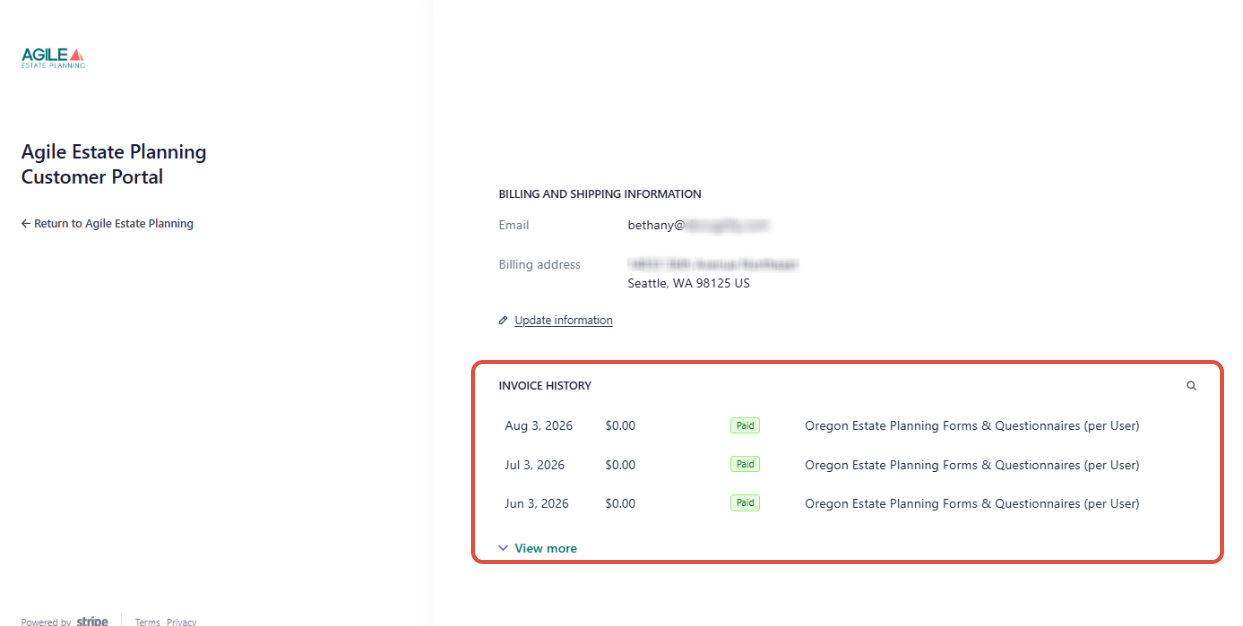
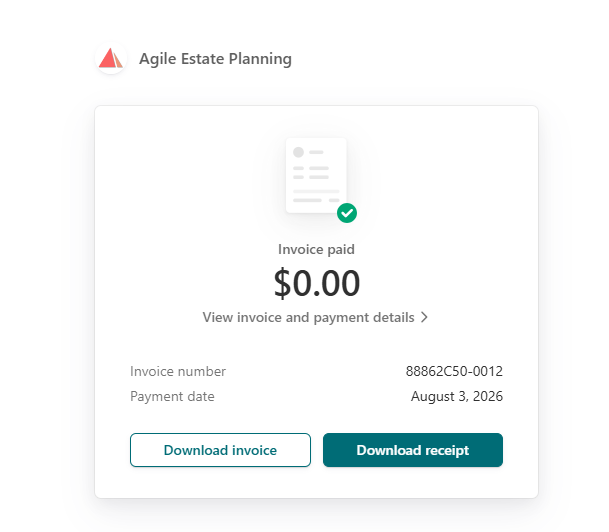
Click any line to open that invoice. The page shows the invoice number, the payment date, and View invoice and payment details for the full breakdown. Two buttons at the bottom produce files you can keep or send on:
- Download invoice gives you the invoice itself, showing what was billed.
- Download receipt gives you proof of payment.
If You Cannot Access Billing
If you are unable to access your billing settings or run into any issues, please contact support and we can send you a direct link to update your payment method.