

The My Users page is where Firm Administrators manage the people at your firm. You can reach it by going to: Manage > My Users. This page adds people to your firm account, sets what they are allowed to do, and removes them when they leave.
Providing your firm’s users with access to the firm’s subscriptions is done on the Manage > Subscriptions page. See this article for additional detail.
The My Users Page
This page displays all users associated with your firm and allows you to:
- View user names and email addresses
- See each user’s assigned roles
- See who has signed in and who still has an invitation outstanding
- Add new users
- Edit existing users
- Remove users from the account
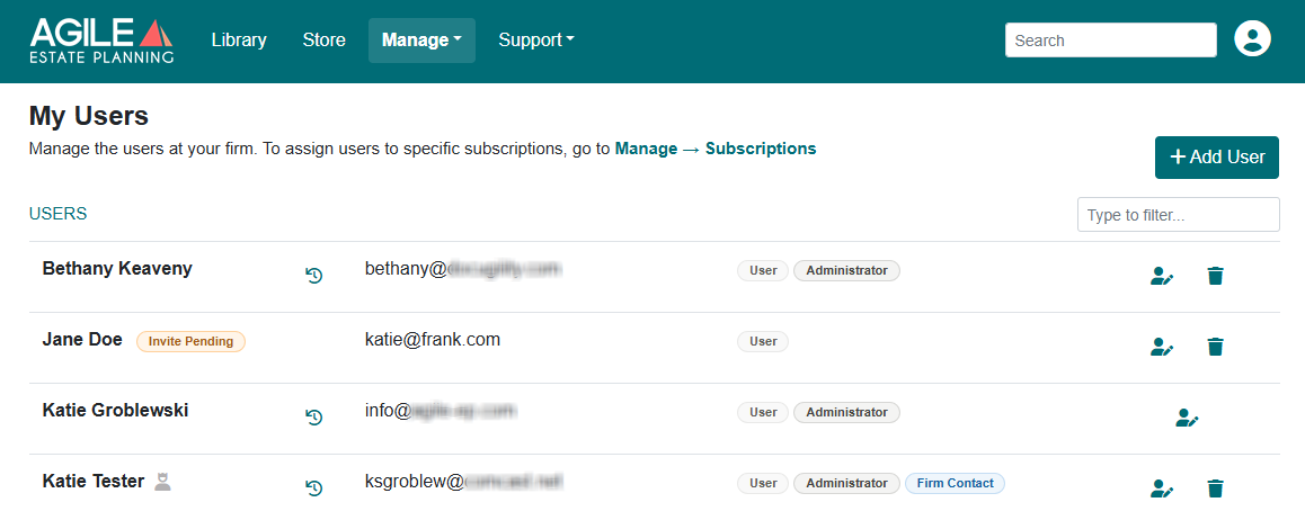
Each row represents a user on your account and includes:
- Full Name – The user’s name as entered in the system
- Email – The email address used for their account login
- User Roles – The roles assigned to that user, shown as labels. Firm Contact appears in color so it stands out from the everyday roles.
- Action – A person icon opens the Edit User window. A trash icon removes the user from the account.
Two icons appear beside a user’s name:
- A grey person icon marks the Firm Contact. Only one user carries it.
- A clock icon indicates that the user has signed in and hovering over it shows the date and time the user last signed in.
A user who has been added but has never signed in shows an orange Invite Pending label instead of a clock. Hovering over it shows when the invitation was sent. A user shows one or the other, never both, and the clock replaces the label the first time that person signs in.
At the top of the page, you’ll also see:
- A filter field to quickly locate a specific user
- An + Add User button to create a new user login
Only users with the Administrator role can add, edit, or remove users.
Adding a User
If more than one person at your firm will draft documents, you will need to add all of them as users.
- Navigate to Manage > My Users.
- Click + Add User.
- Enter the user’s name and email address.
- Leave External User ID blank. It is optional.
- Under Roles & Permissions, select the roles this user will hold. (User is already selected and cannot be removed.)
- Click Save.
Repeat these steps for each additional drafting user.
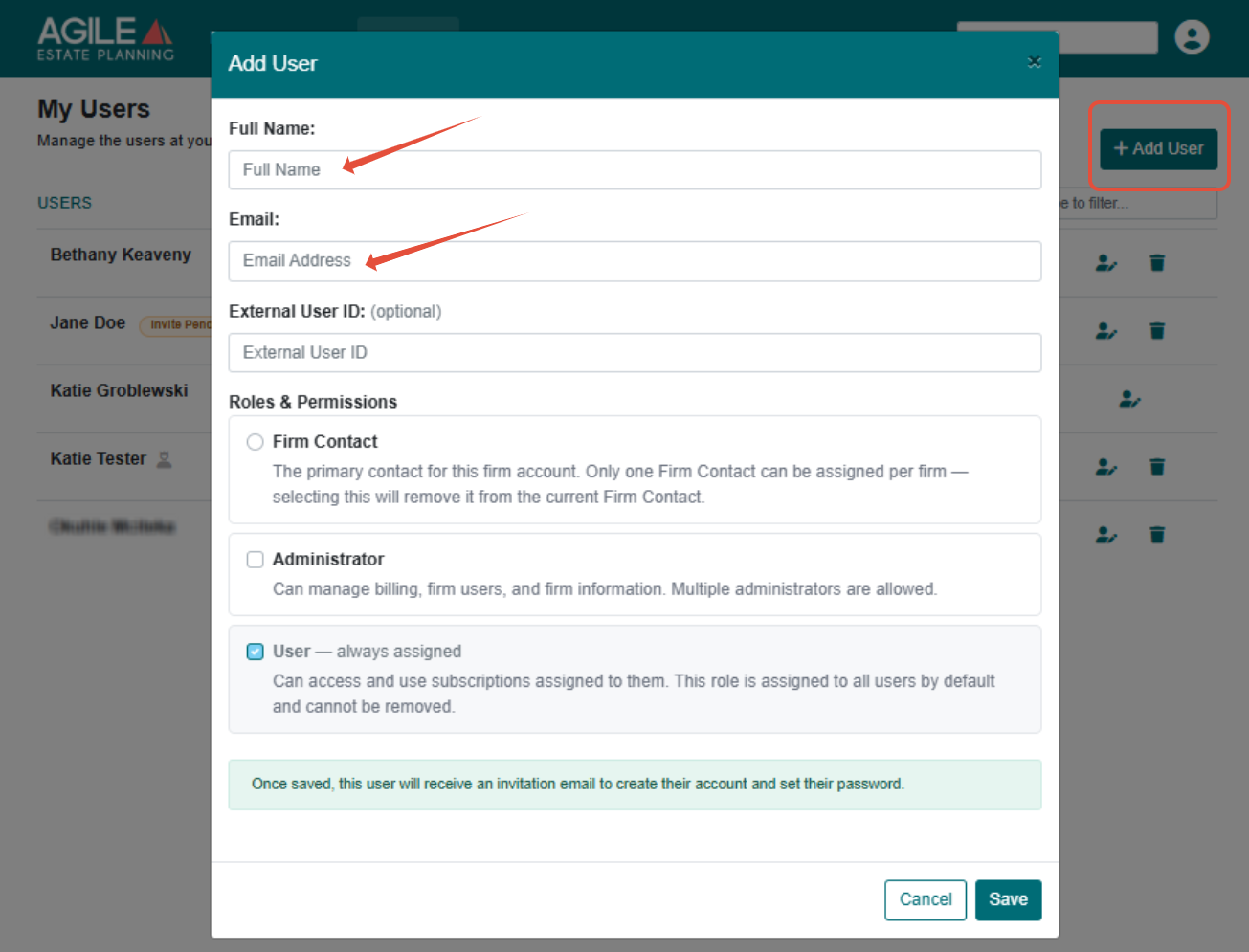
The new user will receive an email from Agile EP prompting them to set a password for their own access to the account. Until they sign in for the first time, their row shows Invite Pending.
User Roles and What They Can Do
Each user is assigned one or more roles that determine their level of access within the firm account. The roles are described in the Add User and Edit User windows as you assign them.
Administrator
Administrators have full account access. They can:
- Add, edit, and remove users
- Change user roles
- Manage billing and subscriptions
- Enter and update Firm Information
- Access all drafting and matter features
A firm account can have as many Administrators as you like, and at least one is required.
User
The User role is assigned to everyone by default and cannot be removed. It is what lets someone open the subscriptions you assign them. Users can:
- Create and manage client matters
- Complete questionnaires
- Draft and assemble documents
They cannot:
- Add or remove users
- Change user permissions
- Modify firm-level settings
Firm Contact
The Firm Contact is the primary contact for the account. Only one person can hold it at a time, so assigning it to someone moves it away from whoever holds it now. This person:
- Receives important account communications
- Receives billing and subscription notices
- Serves as the primary point of contact for administrative matters
If your firm has only one user, that user holds every permission. As a solo attorney you are the Administrator, the Firm Contact, and the primary drafting user, all at the same time, and there is nothing to set up.

The role structure is designed to support larger firms with multiple team members, but it works just as smoothly for solo practices.
Editing a User
To change someone’s name, email address or roles, click the person icon on their row. The Edit User window holds the same fields as Add User.
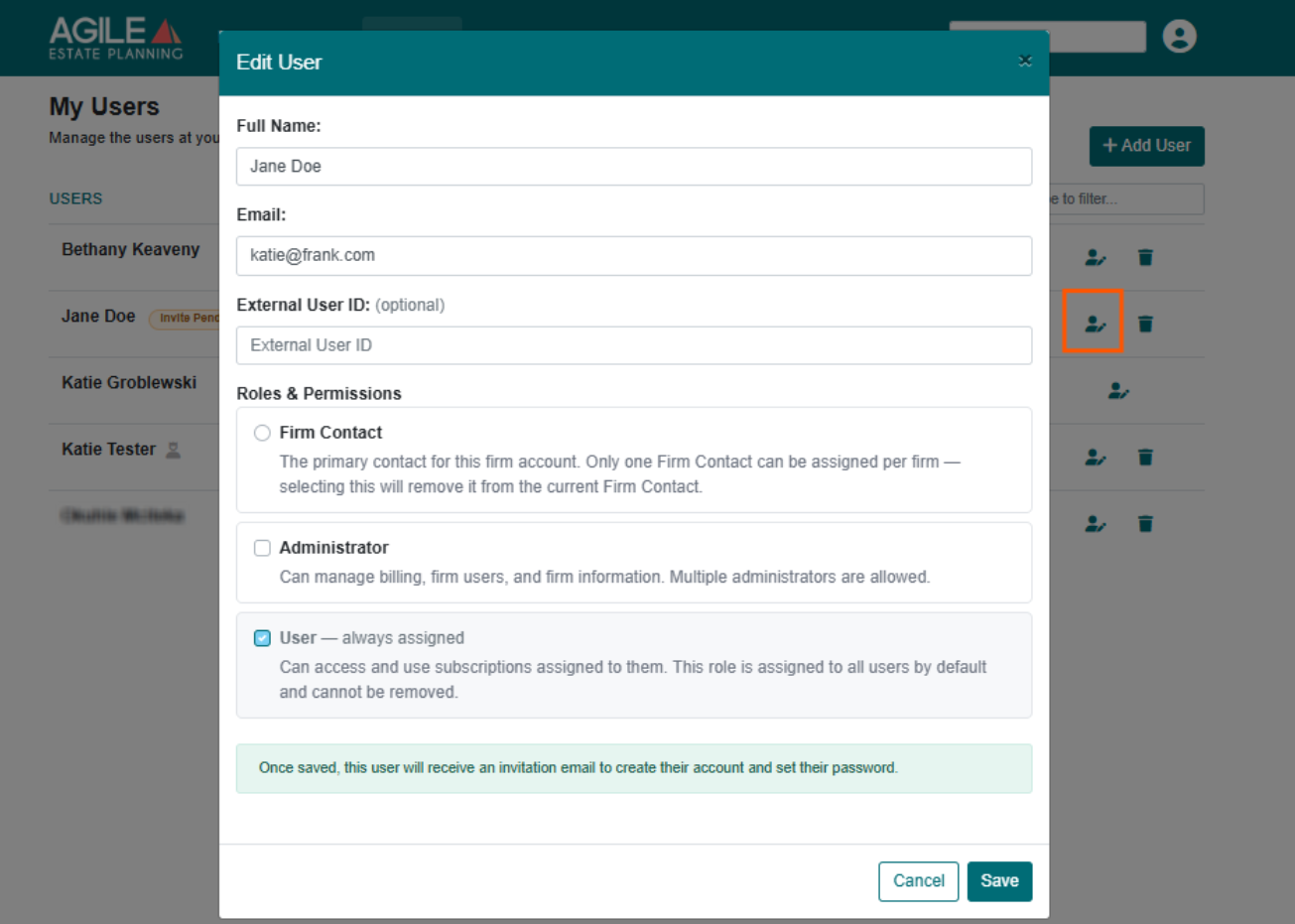
Only an Administrator can modify user roles.
Removing a User
Removing a user takes that person off your firm account altogether. Their login stops working, and they are released from every subscription they were assigned to. This is what you use when someone leaves the firm.
To remove someone, click the trash icon on their row. Only an Administrator can remove a user.
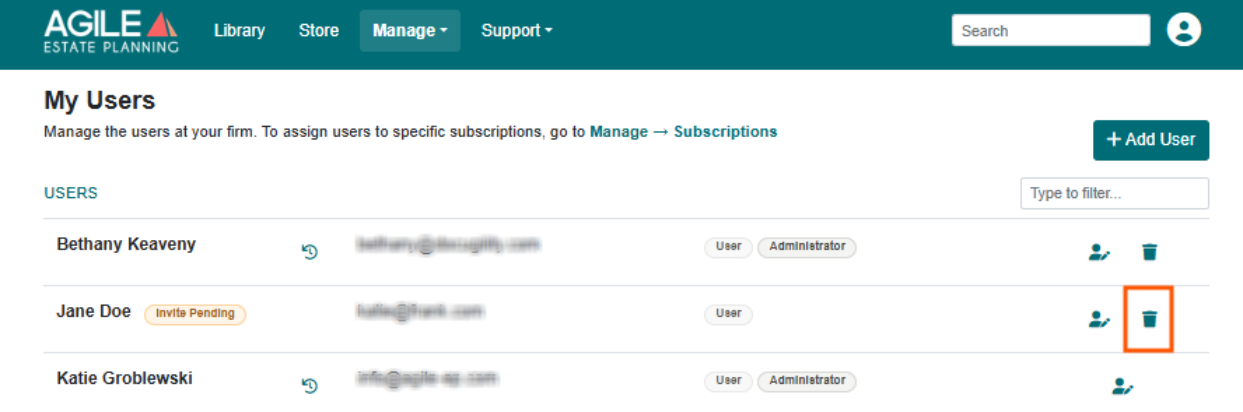
Removing a user does not delete client matters. Your firm’s data stays in Agile EP. Only that individual login is revoked.
Your own row has no trash icon. You cannot remove yourself from the account. To have your own login removed, ask another Administrator at your firm to do it.
Removing a user and removing a subscription are two different things Removing a subscription from a user, using Manage Access on the Subscriptions page, takes one product away from them while their login and any other subscriptions stay exactly as they were.
If the person is staying at your firm and only needs a different product, use Manage > Subscription and the Manage Access button. See this article for more details.