

Adding someone under Manage > My Users gives them a login, but it does not give them access to any templates. Access is granted to each user per subscription, on the Manage > Subscriptions page.
This article covers assigning a subscription to a user, removing it again, and what happens when every seat is already in use.
How Seats Work
Each subscription your firm holds has its own number of seats, and access is granted for one subscription at a time. Someone assigned to Washington Estate Planning does not automatically have Washington Probate.
The page is titled Manage Existing Subscriptions and lists only the subscriptions your firm holds, one card each. Each card shows the seats assigned out of the seats you are paying for, so you can see whether you have room without opening anything. A subscription still inside its trial period carries a Free Trial Active badge.
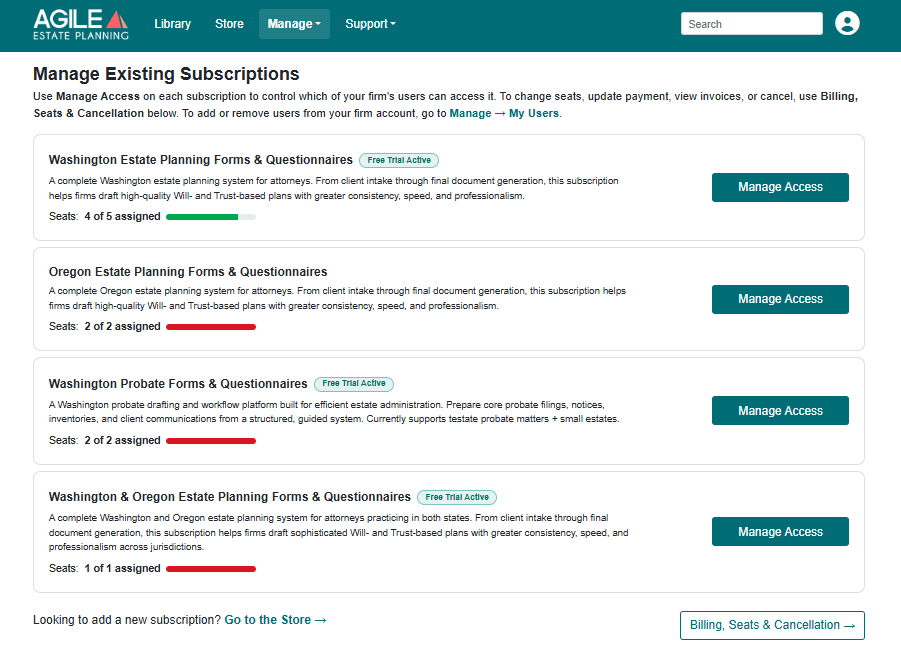
The bar beside the seat count is green while seats remain and red once every seat is assigned. A card reading 2 of 2 assigned with a red bar means every seat you are paying for is in use. Assigning another person to that subscription will add a seat.
Assigning a Subscription
- Navigate to Manage > Subscriptions.
- Locate the subscription and click Manage Access.
- Click Assign User and select a user from the drop down menu.
- Click Save.
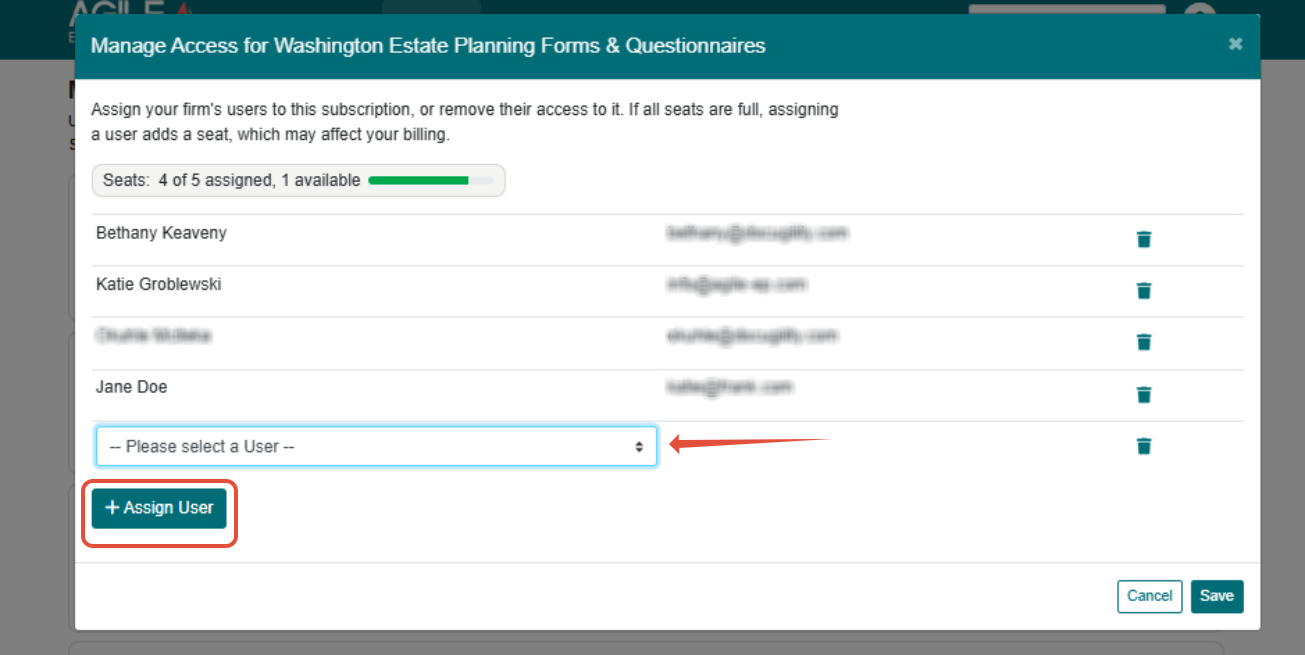
The window is titled with the name of the subscription you are editing, and your seat count stays in view while you work.
Only people already on your firm account appear here
To give access to someone new, add them under Manage > My Users first, then return to this window. See How do I add, edit, and remove users?
Assigning a User When Every Seat Is Full
If a seat is available, the user is assigned and nothing else happens.
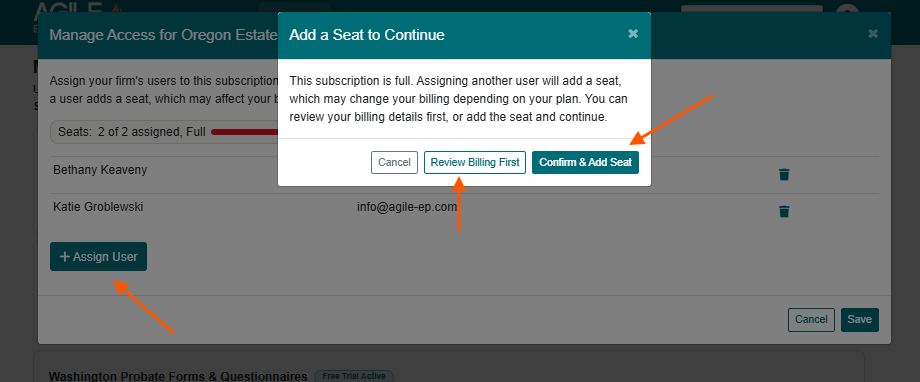
If every seat is already assigned and you assign one more person, click Assign User and Add a Seat to Continue appears. It offers three choices:
- Cancel closes the window and leaves everything as it was.
- Review Billing First opens your billing portal so you can look at your plan before committing.
- Confirm & Add Seat automatically adds a seat and assigns the user. Adding a seat will change your billing adding the cost of the new seat.
Another way to change your seat count is to use the Billing, Seats & Cancellation button on the Manage > Subscriptions page. See this article for details.
Removing a Subscription From a User
In the Manage Access window, click the trash icon beside a user to remove that subscription from them.
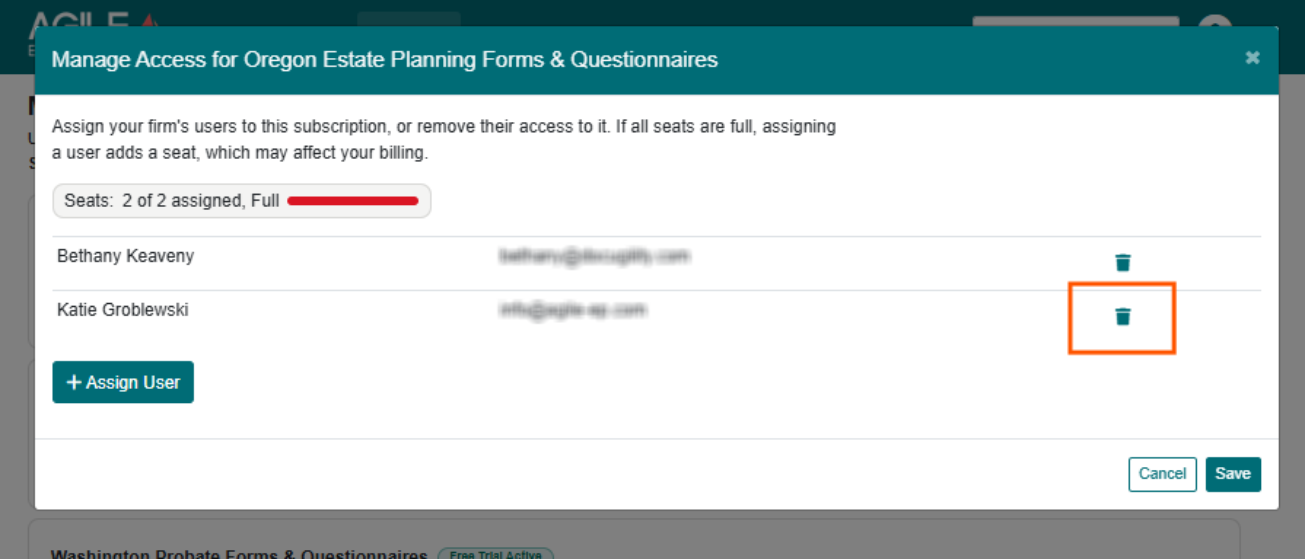
This removes one subscription from one person. It does not remove them from your firm account, and it does not affect any other subscription they hold. The seat is freed for someone else.
Freeing a seat does not reduce your bill
You continue to pay for the seat until you reduce the seat count on the subscription itself. See How do I change the number of seats or billing period?