

The Custom Estate Planning Questionnaire lets you choose which sections a client completes and send a questionnaire built for that client. You check the sections on one setup screen, from family details and fiduciaries to health care wishes, final arrangements and finances. Your client then sees only the sections you checked. It has the same name in the Washington and Oregon estate planning products.
A client who knows their asset and liability information can usually complete a full questionnaire in about 20 minutes.
Choose the sections before you send
Your client sees only the sections checked when you click Share Interview. Sections cannot be added or removed after the questionnaire is sent. If nothing is checked, your client is asked for personal information only.
Before You Start
Your client sees your firm’s logo, colors and contact details in the questionnaire. These come from Manage > Settings and Manage > Firm Information. See this article for how to complete those settings.
The attorney responsible for the client is chosen from a list on the setup screen. That list comes from Manage > Firm Information, so an attorney must be added there before they can be selected.
Open the Questionnaire
- Go to the Library.
- Select Washington Estate Planning Forms & Questionnaires or Oregon Estate Planning Forms & Questionnaires.
- Open the Client Questionnaires folder.
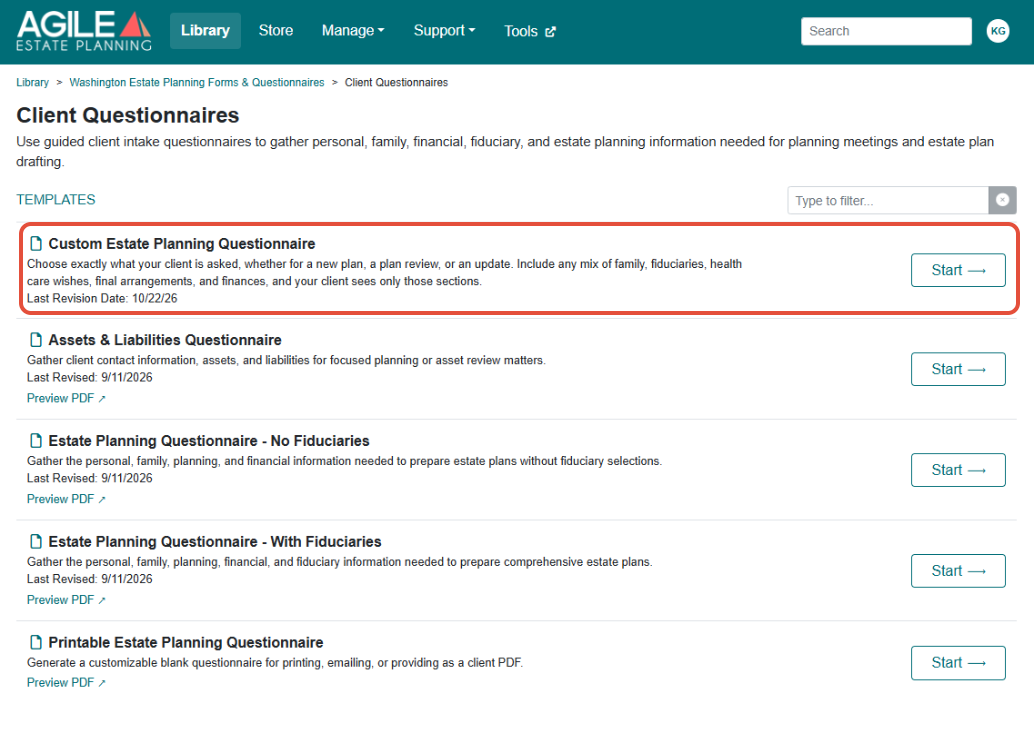
- Click Start next to Custom Estate Planning Questionnaire, the first questionnaire in the folder.
If answers from your last questionnaire are loaded when it opens, click New Data before you continue, so another client’s information is not sent. See this article for more on starting from a clean questionnaire.
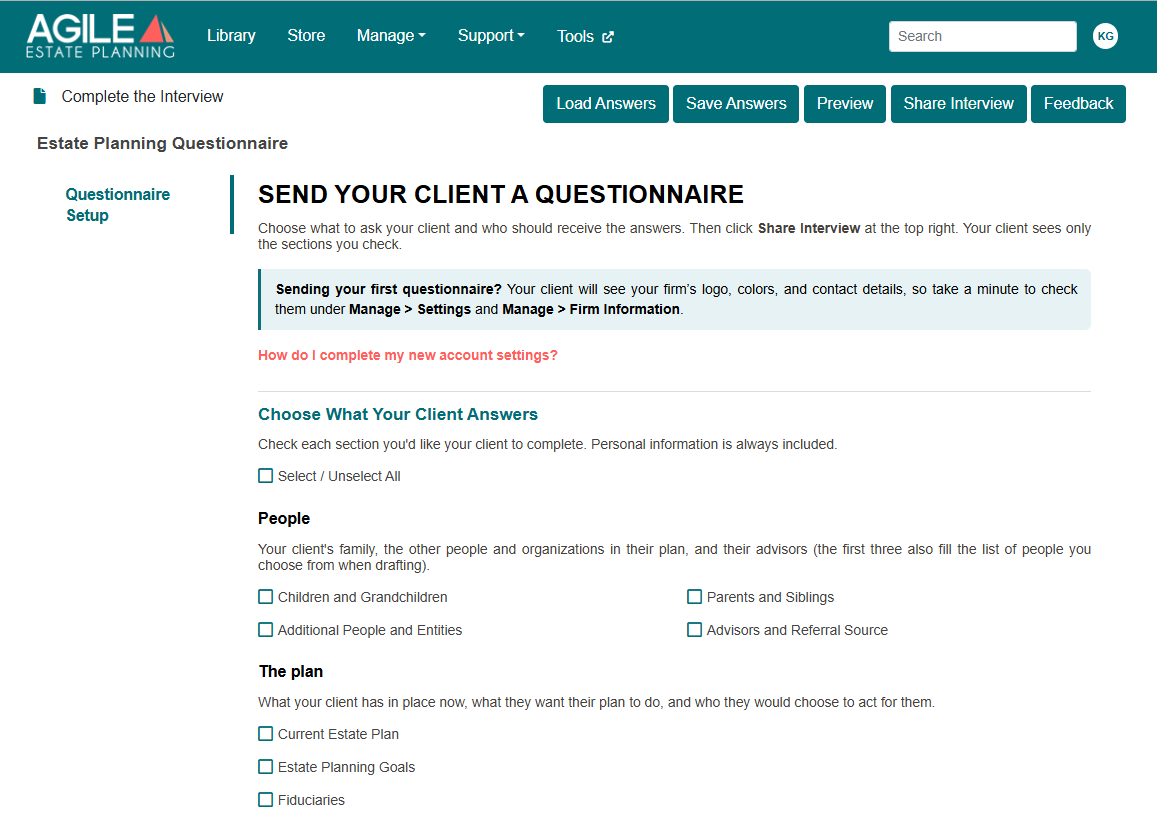
The questionnaire opens on the Questionnaire Setup tab. This tab is for you only. Your client never sees it, and it is the only tab you see until you choose to show the client’s sections (described below).
Choosing the Sections
The Choose What Your Client Answers section lists every section the questionnaire can include, in four groups. Each section has a checkbox, and all of them start unchecked. Personal information is always included and has no checkbox. Select / Unselect All checks or clears every section at once.
People
The People group collects your client’s family, the other people and organizations in their plan, and their advisors. It includes Children and Grandchildren, Parents and Siblings, Additional People and Entities and Advisors and Referral Source.
The first three sections also fill the list of people you choose from when you draft the plan. If they are left unchecked, the questionnaire adds no one to that list.
The Plan
The plan group covers what your client has in place now, what they want their plan to do, and who they would choose to act for them. It includes Current Estate Plan, Estate Planning Goals and Fiduciaries.
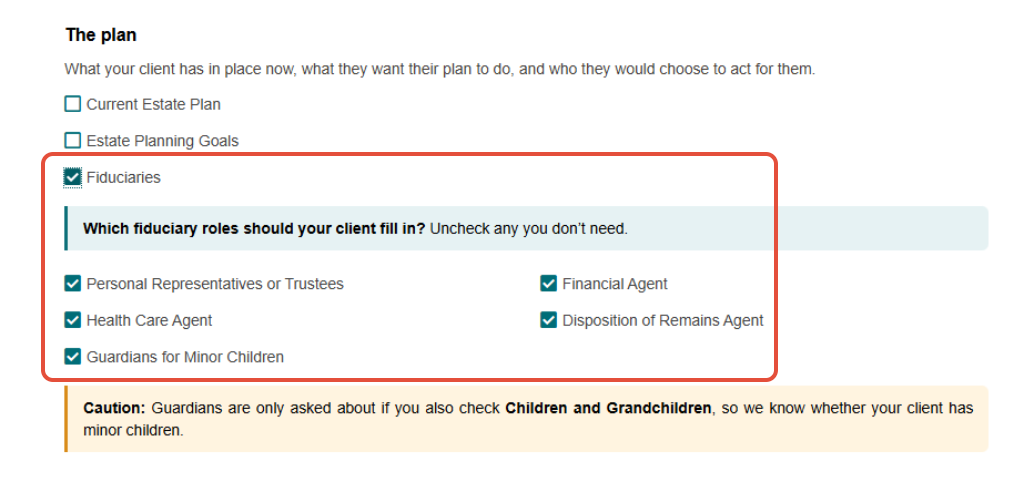
Checking Fiduciaries opens five role checkboxes, all checked to start:
- Personal Representatives or Trustees
- Financial Agent
- Health Care Agent
- Disposition of Remains Agent
- Guardians for Minor Children
Your client is asked to name people only for the roles left checked, and only those roles print. Unchecking a role removes it from the questionnaire entirely.
Guardians need Children and Grandchildren
The guardian questions are asked only when Children and Grandchildren is also checked, because that section tells the questionnaire whether your client has minor children. A caution appears on the setup tab when Guardians for Minor Children is checked without it.
Health Care and Final Wishes
This group collects your client’s wishes for their medical care and end of life, and for their funeral, burial or other arrangements. The sections differ by state:
- Washington: Health Care Preferences, End of Life Preferences and Final Arrangements and Remembrance.
- Oregon: Health Care Preferences and Final Arrangements and Remembrance. The Oregon Health Care Preferences section includes the end-of-life questions, so there is no separate End of Life section.
Finances
The Finances group collects what your client owns and owes, with an Assets checkbox and a Liabilities checkbox. The financial summary page is included only when both are checked.
Choosing Who Receives the Answers
Select the Attorney responsible for this client from the list. If the attorney is missing, add them under Manage > Firm Information.
Then answer Email a copy of the completed questionnaire to someone at your firm? This question is required. Answering Yes displays fields for the email addresses that receive the copy. For how to find and use the answers once your client submits, see this article.
Send the Questionnaire
When the setup is complete, click Share Interview at the top right of the screen. You then enter your client’s email address and choose a password option and how long the link stays open. See this article for each of those settings and for customizing the invitation email.
Use Share Interview, not Submit Your Answers

The Submit Your Answers button at the bottom of the setup tab does not send the questionnaire. Clicking it returns you to the top of the page. Only Share Interview sends the link to your client.
Previewing the Client’s Sections
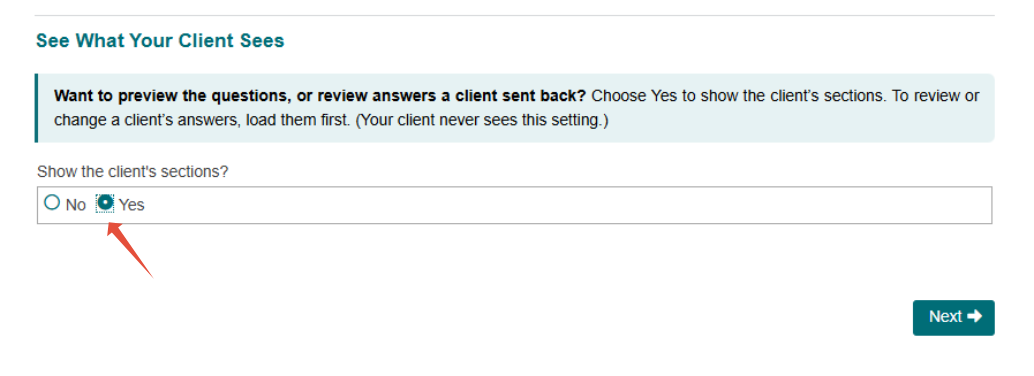
The last section of the setup tab, See What Your Client Sees, asks Show the client’s sections? It is set to No, so you see the setup tab alone.
Choosing Yes shows the client’s tabs down the left of the screen, so you can preview the questions or review answers a client sent back. To review or change a client’s answers, load their answers first. Your client never sees this setting.
The Client’s Experience
Your client sees an Introduction tab, Personal Information, a tab for each section you checked, and Submit Answers. For a married or partnered client, questions that differ by person appear side by side, one column per person, headed by each person’s preferred name.
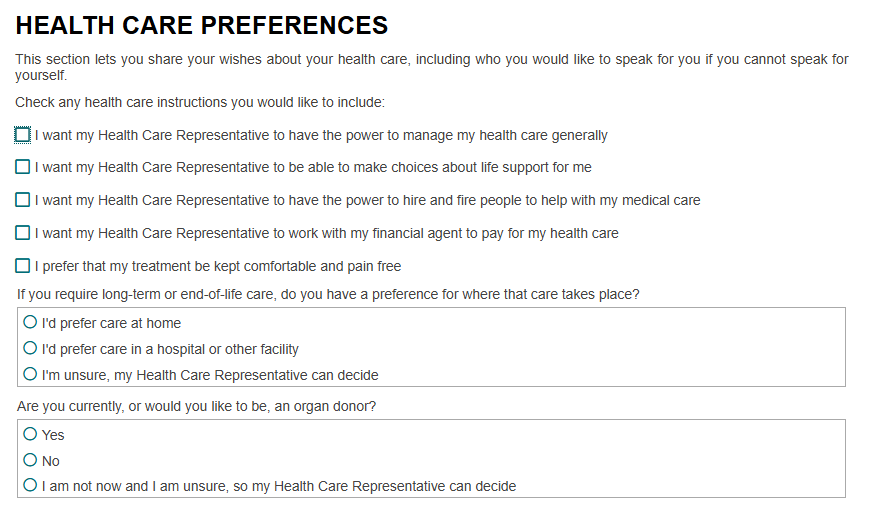
In Oregon, the Health Care Preferences tab refers to the client’s Health Care Representative rather than a health care agent. It asks five checkbox instructions, where the client would prefer long-term or end-of-life care, and whether they are or would like to be an organ donor.
For more on the client’s experience of a questionnaire, see this article.
What Prints
The completed questionnaire prints under your firm’s name, address and contact details, with the title Estate Planning Questionnaire and the date. Each section prints on its own page, in the same order as the setup tab, and only the sections you checked print. For a married or partnered client, each page shows one column per person.
Blank answers print in a way you can spot at a glance:
- A fiduciary role you unchecked does not print, even as a heading.
- A fiduciary role the client left empty prints “Left Blank”.
- If the client entered no assets, the asset page says “Client did not fill in any assets”.
- If the client entered no liabilities, the Liabilities page says “None entered”.
- Asset and liability rows the client left empty do not print.
- An empty answer on the health care or final arrangements pages prints as “Not answered”.
Using the Answers in Your Drafting
The questionnaire uses the same fields as the drafting interview, so answers your client gives carry into the plan when you load them:
- Final Arrangements and Remembrance answers carry to the Disposition of Remains.
- In Washington, Health Care Preferences and End of Life Preferences answers carry to the Health Care Power of Attorney and the Health Care Directive.
- In Oregon, Health Care Preferences answers carry to the Advance Directive.
- Agents and guardians come from the Fiduciaries section.
Sections you did not check have nothing to carry over. See this article for downloading the client’s answer file and loading it into a drafting package.
Common Questions
Below are answers to questions that come up when building a questionnaire.
Can I add a section after I send the questionnaire?
No. The sections are fixed when you click Share Interview. To change the sections, delete the questionnaire you sent under Manage > Shared Interviews, then build and send a new one with the sections you want.
Why is the list of people almost empty when I draft?
The list of people you choose from when drafting is filled by Children and Grandchildren, Parents and Siblings and Additional People and Entities. If those sections were not checked, your client was not asked for those people. Add them in the drafting interview.
Why was my client not asked about guardians?
The guardian questions appear only when Children and Grandchildren is checked alongside Guardians for Minor Children.
Why did the financial summary page not print?
The summary page is included only when both Assets and Liabilities are checked.
Why didn’t “Submit Your Answers” send the questionnaire?
On the setup tab, Submit Your Answers does not send the questionnaire. Click Share Interview at the top right of the screen.