
After completing a drafting interview, the final step is to assemble the documents. During assembly, Agile Estate Planning uses your saved Answer File to generate the final documents. It’s important to know that documents are not created automatically during the interview; they are generated only when you choose to assemble them.
Fix Flagged Items Before You Assemble
When you open the Assemble Documents tab, a red warning block headed “Stop” may appear at the top of the page, listing things to fix before you assemble. It appears in every estate planning package whenever the interview is missing something that would print oddly in the finished documents.
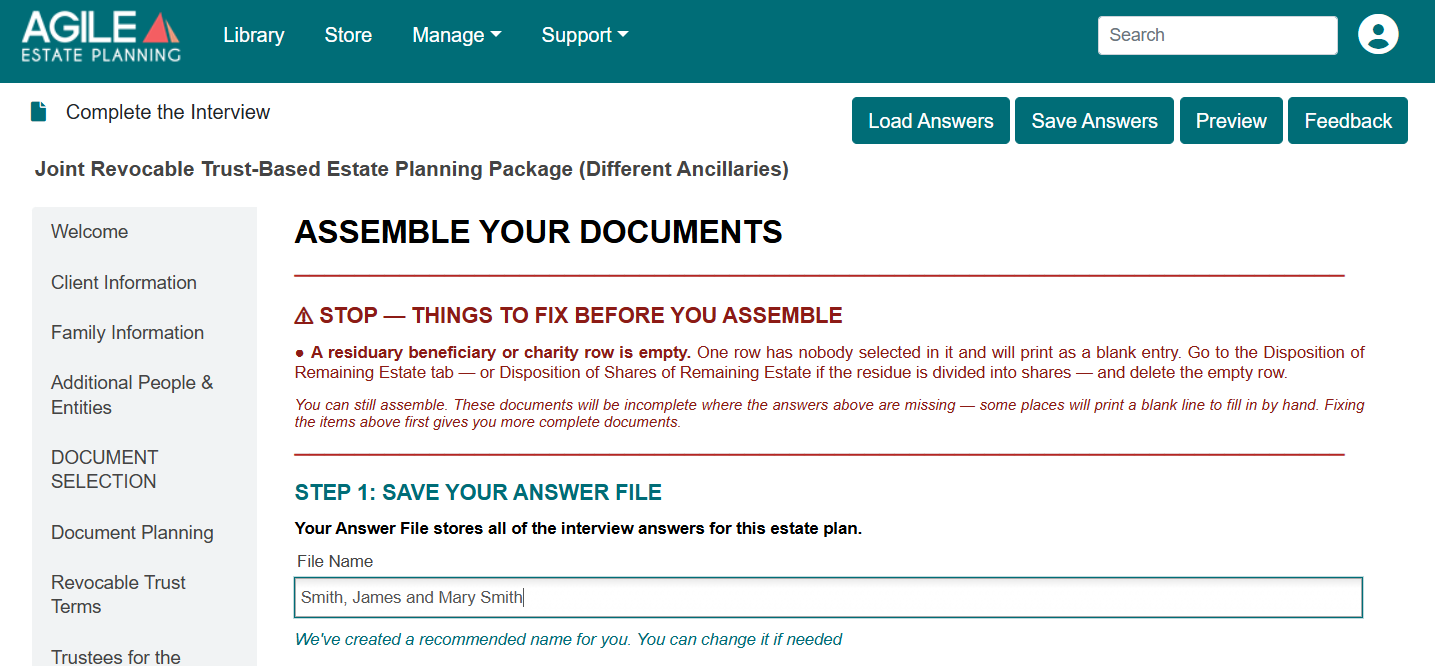
Each item is stated in bold and tells you where to fix it. For example, if a residuary beneficiary or charity row is left empty, the warning explains that the empty row will print as a blank entry and points you to the Disposition of Remaining Estate tab, or Disposition of Shares of Remaining Estate if the residue is divided into shares, to delete the empty row.
You can still assemble without fixing these items. Where an answer is missing, the documents will be incomplete, and some places will print a blank line to fill in by hand. Fixing the flagged items first produces more complete documents. The warning never blocks assembly, and it does not appear when nothing needs attention.
Always Save Your Answer File
The Answer File stores all of the responses from the interview and is required to assemble documents. Saving the Answer File ensures that your responses can be reused or edited later if needed.
At the end of a drafting interview, there will be an Assemble Documents tab. Enter a file name for the Answer File at the top of the page. A recommended name will be provided, but you may edit it if needed. Then, save the Answer File by clicking Save Answers. You will be directed to the Answer Files window, where you can save your Answer File. For more details about the Answer Files window and saving or overwriting answers, see this article.
Preview Documents (Optional)
If you would like to review the documents before assembling them, you may preview them. Click Preview Document to open a read-only preview in a new browser tab that will show how the assembled document will appear.
Because the preview is read-only, any changes must be made by returning to the interview and updating your answers. If the preview does not open, check your browser’s pop-up or download settings.
Assemble Documents
When you are ready to generate the final documents, click Assemble. Agile Estate Planning will generate all documents included in the selected package using the information stored in the Answer File.
After assembly, the Assembled Documents screen will display the generated documents. From this page, documents may be downloaded individually or as a complete set in a zip file. In addition to the documents, an Answer File will be included in the downloaded zip file automatically, for saving locally on your computer.
If documents do not open or download, check your browser permissions. If your documents are not assembling, you may have skipped some interview answers or you may have to reset your drafting interview.
If You Didn’t Save Your Answer File Earlier
If you did not save your Answer File on the Assemble Documents Tab, you will have another opportunity to do so on the Assembled Documents page. In the Answer Files section, you can select Save to Disk or Save to Cloud.
This serves as a final opportunity to save the Answer File and ensure your interview responses are preserved for future editing or document generation.