
Once your client submits their questionnaire, their responses are available inside your Agile EP account.
Depending on your sharing preferences, you may also receive an emailed copy of the completed questionnaire. However, the email copy is for review only; the answer file used for drafting is accessed inside Agile EP.
Learn how to monitor questionnaire status, review responses, and keep each client moving forward by viewing our video or by reviewing the step-by-step instructions below.
Where to Find Completed Questionnaires
To access submitted questionnaires, go to: Manage > Shared Interviews
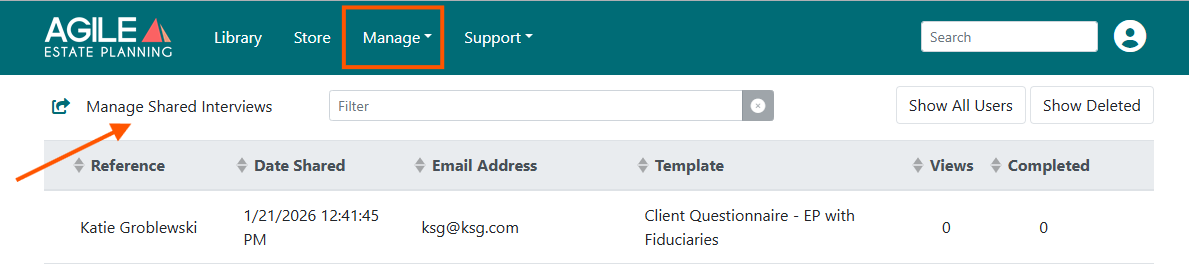
On this page, you can see:
- The client reference name
- Date shared
- Email address
- Template used
- Number of views
- Whether it has been completed
Using the Client’s Responses for Drafting
After your client submits the questionnaire, you’ll need to download and save their answer file before you can use it in drafting. Check out our video overview of this process:
Or here are the manual steps for you. Start by going to: Manage > Shared Interviews
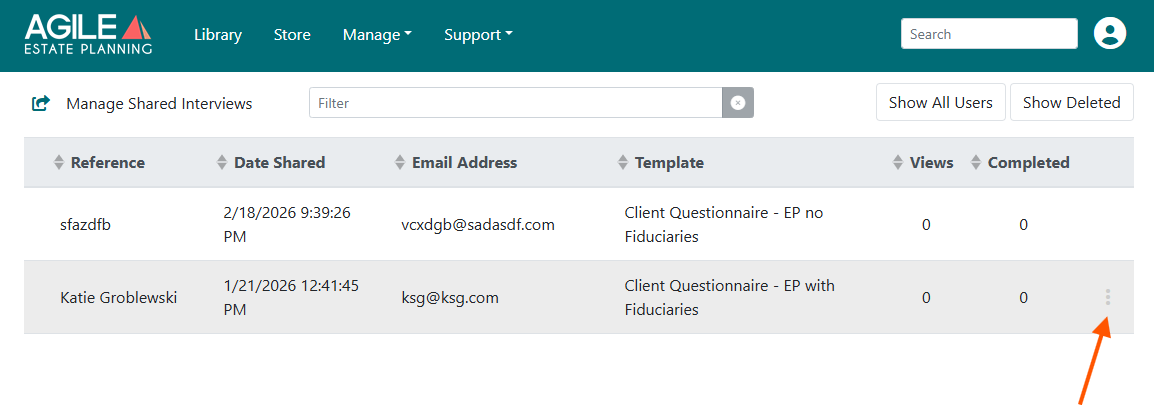
Locate the client in the list and click on their row to highlight it (it will turn grey). Then click the three-dot menu on the right and select Download Saved Data. This will download the client’s answer file to your computer. (This file contains the structured data used for drafting, not just a PDF of the questionnaire.)
Next, go to: Manage > Answer Files
Drag the downloaded answer file into the appropriate folder or subfolder where you store client matters.
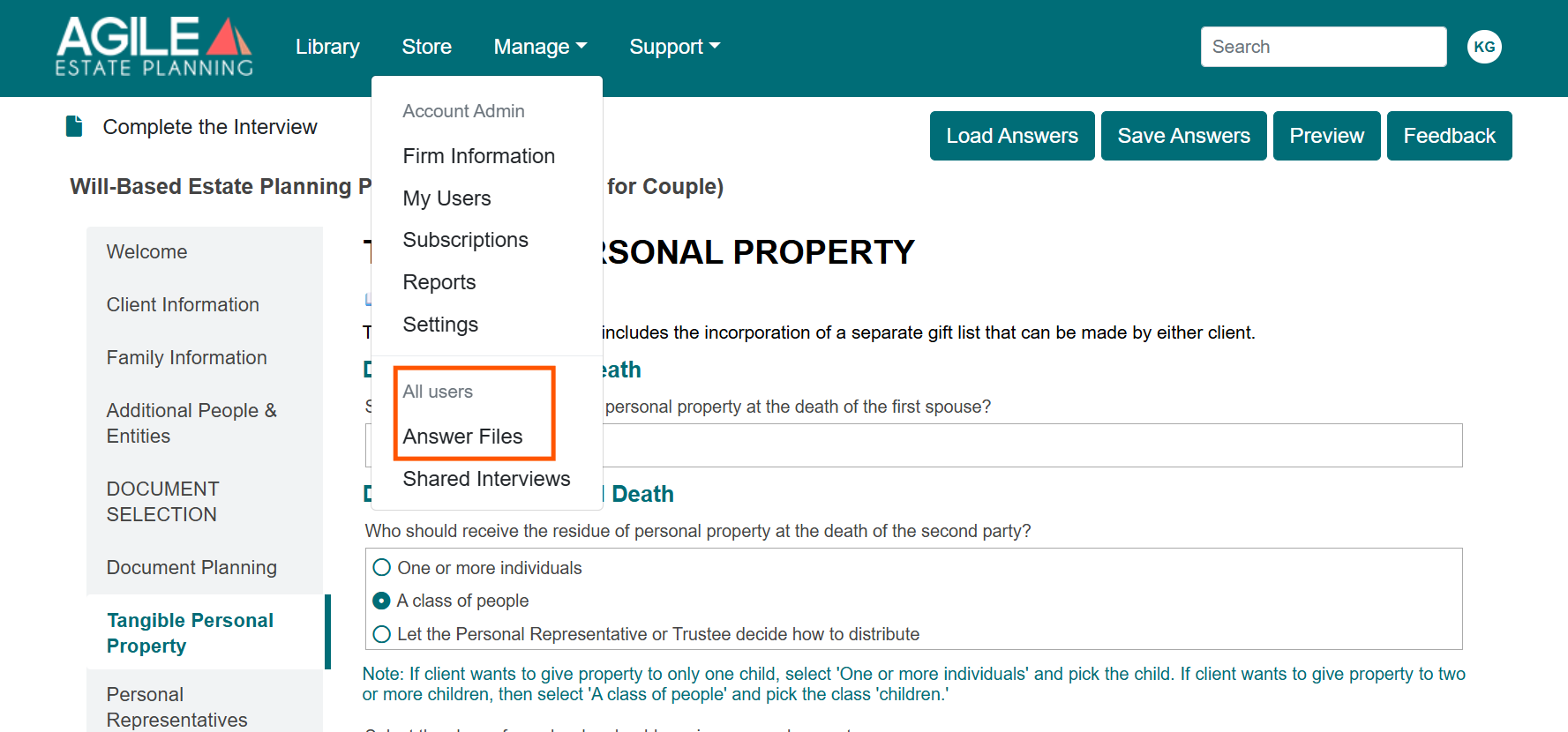
Once saved in Answer Files, the answer file can be loaded into drafting interviews and reused with compatible templates. This ensures the client’s responses flow directly into your documents without re-entering information.
Understanding the Shared Interviews Menu
Each shared questionnaire includes additional options in the three-dot menu. Below is a quick reference guide.
View Interview
Opens the questionnaire exactly as the client sees it, including any saved responses. Helpful for reviewing information before drafting.
Go To Folder
Takes you directly to the template folder where that questionnaire is stored.
View History
Shows detailed activity, including:
- When the questionnaire was shared
- When it was viewed
- When it was completed
The number of views and completions is visible in the main list, but View History provides more detailed tracking.
Download Document
Downloads a PDF copy of the completed questionnaire. Important: This is not the drafting answer file. Use Download Saved Data for drafting purposes.
Resend
Resends the questionnaire invitation email if the client cannot locate it.
Deactivate
Manually disables the questionnaire link so it can no longer be accessed. If a questionnaire is deactivated, the option will change to Activate, allowing you to restore access. If a PIN was set, you will also have the option to reset the PIN.
Delete
Removes the shared interview from the system. Use caution. Deleted interviews:
- Are accessible via the Show Deleted button
- Are permanently deleted after 30 days
- Cannot be restored once permanently deleted
Share Status Indicators
Icons on the Shared Interviews page indicate whether a questionnaire is:
- In progress
- Deactivated
- Deleted
This allows you to quickly see the status of all shared interviews at a glance.