
As you work through a drafting interview in Agile EP, the information you enter is stored in answer files. Answer files are the data source used to generate documents and are central to how drafting, revision, and reuse work in the system. Saving answers allows you to pause drafting, return later, maintain multiple versions, or separate plans by client or planning scenario.
Agile EP includes a built-in File Explorer that lets you intentionally save, organize, and overwrite answer files.
When a client completes questionniare, their answers also create an answer file. Access to and use of an answer file created by a client (instead of internally as a part of a drafting interview) is addressed in this article.
Starting a New Interview: The New Data Button
When you open a drafting template, Agile EP may automatically load the answers from the interview you worked on most recently, so the interview opens already filled in. A green message at the top of the screen reports that your previous answers were loaded, and offers a New Data button that clears them and begins a new interview from scratch.
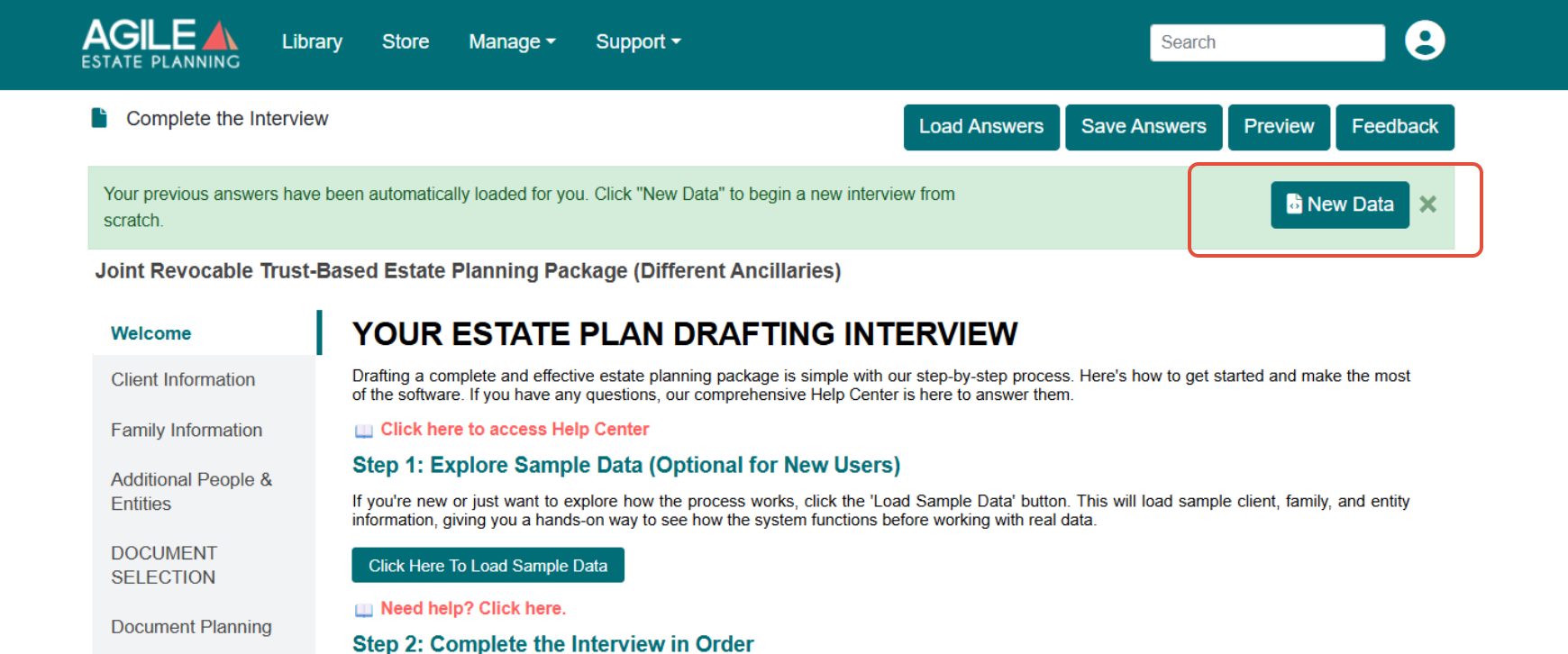
Click New Data before you start work for a different client. The message closes on its own after a few seconds, and it can also be dismissed with the X at its right edge.
Confirm whose answers are loaded
It is possible to begin an interview without noticing that another client’s answers are already loaded. If the "New Data" message has already closed and you are not certain whose information is in the interview, open the Client Information tab and check the names before you continue drafting, assemble documents, or share the interview with a client.
Loading answers automatically is a convenience for returning to work in progress. If your connection drops or you close the browser partway through a long interview, your answers are still there when you come back. It does not replace saving an answer file, which is described in the sections below.
The File Explorer
When you click Save Answers, and have “Cloud Storage” enabled under Manage > Settings, the File Explorer opens. The File Explorer functions like a standard folder system and supports:
- Multiple parent folders and subfolders
- User-based organization (by checking the “Show only my files" option)
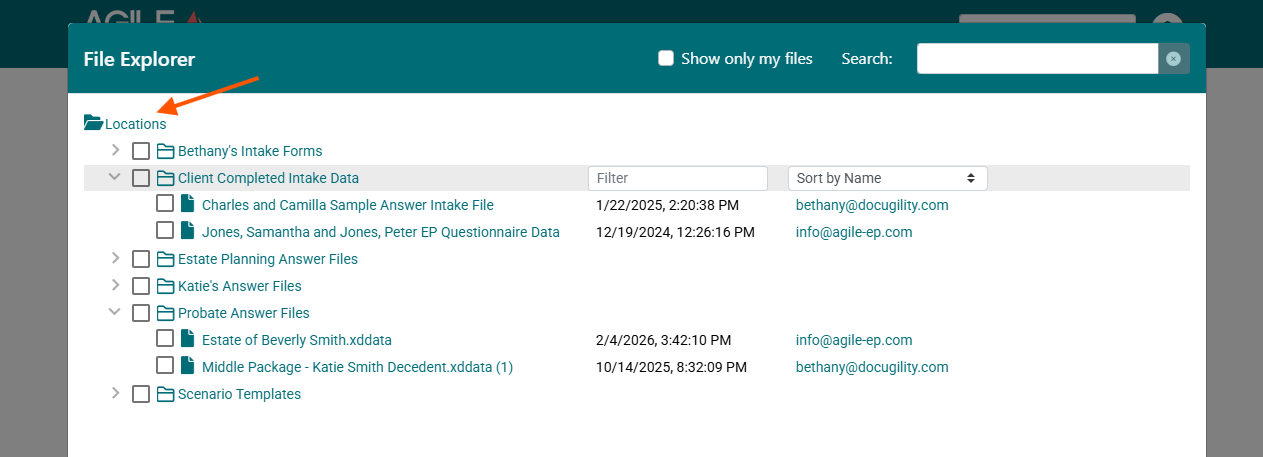
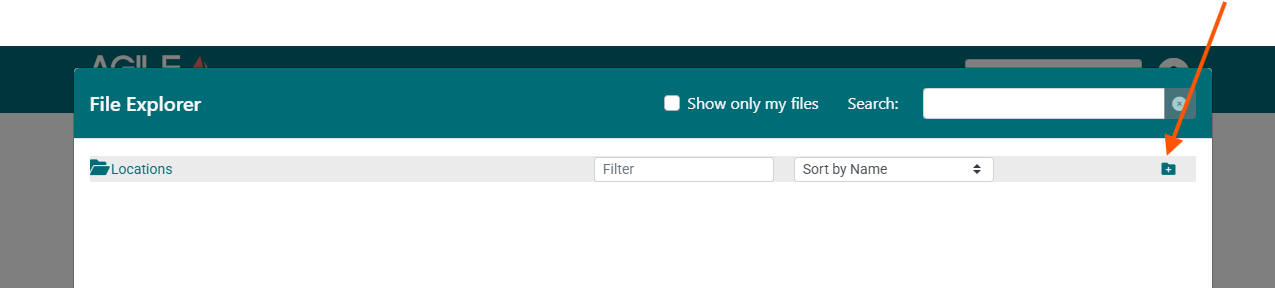
- Locations are the highest-level folders in the File Explorer. Parent folders are created by highlighting Location and clicking the add folder icon. Each Location typically represents a firm, office, user, or other top-level organizational unit.
- Subfolders are created within a Location or within another subfolder.
- To add a subfolder, select the parent folder and click the Add Folder icon.
- Subfolders may be nested to support additional organization.
Answer files are saved inside folders and follow the folder structure in which they are stored.
Saving a New Answer File
To save a new answer file:
- Click Save Answers while in a drafting interview
- Select the highest-level folder or any folder where the file should be stored - Do not select an existing file
- Enter a name for the new answer file when prompted
- Click Save
This creates a new, standalone answer file without affecting any existing files.
Saving a new file is recommended when:
- Saving an initial draft
- Creating an alternate scenario from an existing answer file
- Saving separate plans (for example, each spouse)
- Preserving a prior version before making changes
Overwriting an Existing Answer File
To overwrite an existing answer file:
- Click Save Answers while in a drafting interview
- Click directly on the existing file name in the File Explorer
- Click Save
- Confirm the overwrite when prompted
Overwriting replaces the contents of the selected file with the current interview answers.
Use overwriting when:
- Continuing work on the same plan
- Making incremental updates to an existing draft
- You are certain the prior version is no longer needed
When you attempt to overwrite an existing file, Agile EP displays a confirmation message.
Saving Answer Files to Your Local Computer (“Local Disk”)
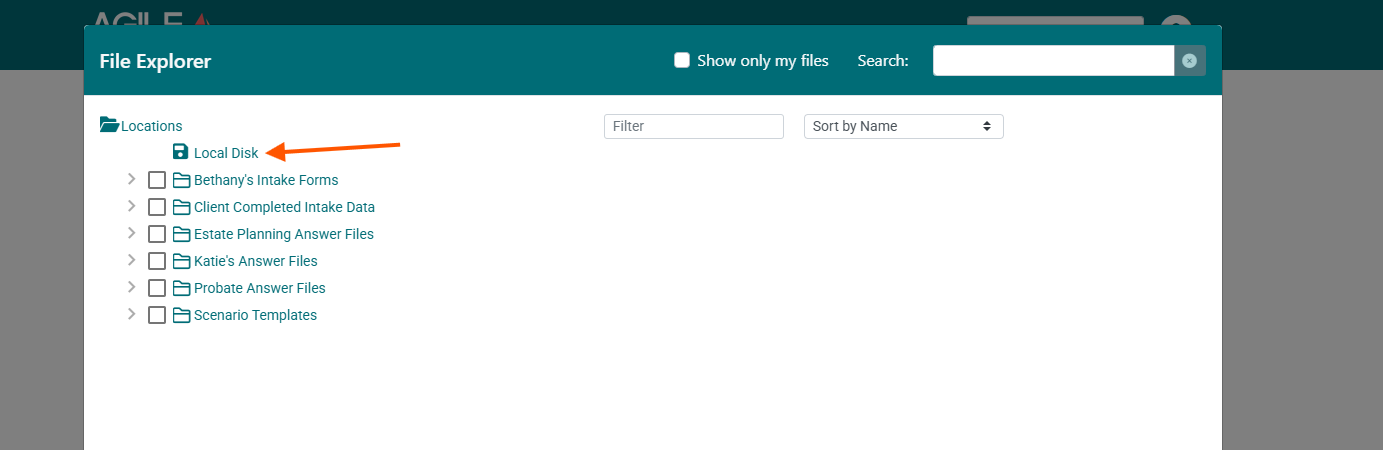
In addition to saving answer files inside Agile EP’s File Explorer, you also have the option to save a copy directly to your local computer. To do this, select Local Disk (the disk icon) instead of choosing a folder within File Explorer. When you click this option, the answer file will download to your computer.
If you open the downloaded file, it may appear to contain code or technical data. That is expected. The answer file is structured data designed to be read by the Agile EP system and cannot be meaningfully viewed or edited outside the platform.
Saving to Local Disk is most useful when you want:
A local backup copy
An archival record
A version stored outside of cloud storage
In most cases, you do not need to manually save the answer file during the drafting interview. When you assemble documents and select Download All, Agile EP automatically downloads both the assembled documents and the completed answer file together. The Local Disk option is available when you need it, but for most workflows, the system already preserves what you need as part of document assembly.
Best Practices for Saving Answers
- Save early and often during drafting. The system will resume where you left off, but it's safer to save regularly.
- After assembling a template (document or package), save the answer file to the cloud. By default, downloading all assembled documents includes a copy of the answer file in the .zip file, allowing you to save it locally with the documents.
- Use clear, descriptive file names (for example, Marge Simpson—Separate Plan—Spouse 1).
- Save separate plans as separate answer files (the system does this automatically).
- Avoid overwriting unless you're confident the prior version is no longer needed.
Relationship to Document Assembly
Answer files control what data is used when documents are assembled.
- Changing answers in a drafting interview and saving them into the answer file (either as a new answer file or overwriting an answer file) does not affect document outputs until the documents are re-assembled
- Saving answers preserves the data state for future assemblies
- Different answer files can generate different document sets from the same drafting template
Careful management of answer files helps ensure consistency between drafting, review, and execution.