

Answer files are loaded after you select a drafting template. Loading answers allows you to reuse previously saved client information instead of entering everything again.
This is one of the easiest ways to save time and maintain consistency across documents.
When to Load an Answer File
You’ll typically load an answer file when you are:
- Returning to a draft you previously worked on
- Reusing client information for a new document
- Drafting related documents for the same client
- Continuing work after closing a session
Template selection always comes first. Once you choose the template you want to use, you can then load the appropriate answer file.
If your client has completed a questionnaire, then you have an answer file that you can start drafting with. Review this article about how to access your client’s questionnaire answer file to use for drafting, which is different than the process described below.
How to Load an Answer File
To load saved responses into a drafting interview:
- Go to the Library.
- Select the appropriate product, folder, and drafting template.
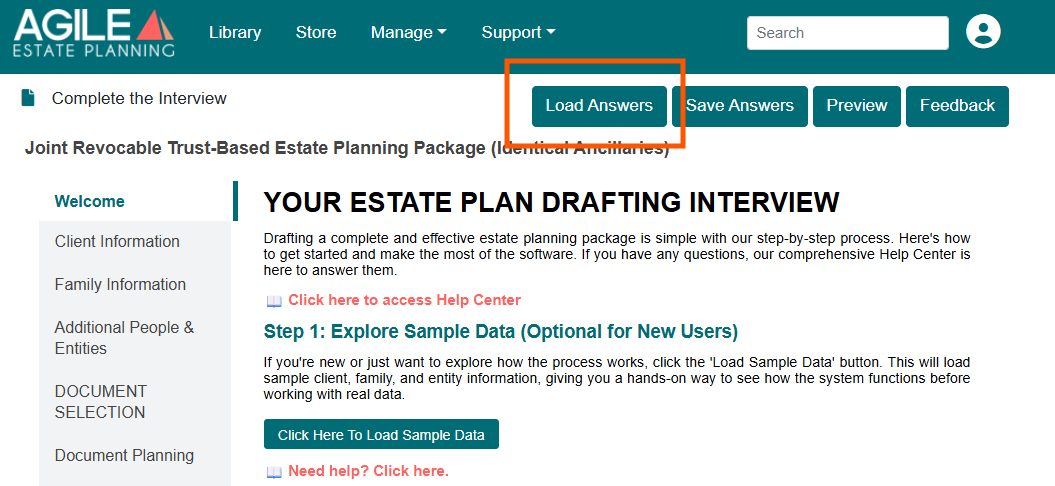
- Choose Load Answers.
- Select the desired answer file from the Answer Files window.
You may load files saved by yourself, or other users in your firm (unless filtered by Show only my files). Once loaded, the interview will be populated with the saved responses. You can then review the information, make updates, and continue drafting as needed.
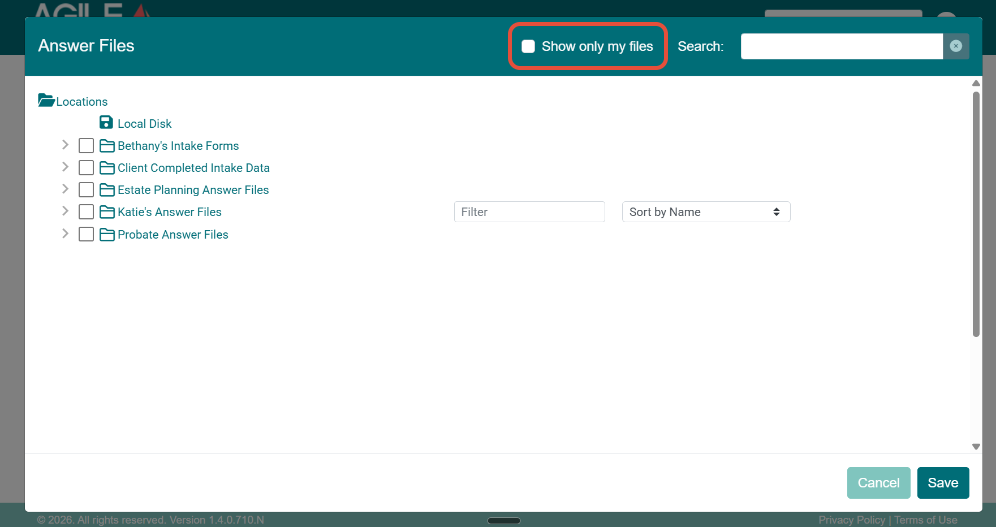
Using “Show only my files”
If your account includes multiple users:
- Enabling Show only my files in the Answer Files window limits the list to files you personally saved
- Disabling it shows all answer files saved by users in your firm
This setting affects visibility only and does not change file contents.
Loading files from your local computer
You may also load answer files that were previously downloaded to your computer:
- Select Local Disk in the Answer Files window
- Choose the downloaded answer file
- The system will then restore the interview exactly as it was saved.
Local downloaded answer files may appear unreadable outside Agile EP, but function normally when loaded back into the system.
What Gets Loaded (And What Doesn’t)
Answer files populate information based on question compatibility.
- Questions that match between the answer file and the selected template will fill in automatically.
- Questions that don’t apply to the current template are simply ignored.
- New or template-specific questions will remain blank for you to complete.
The system does not force answers into the wrong fields or override the structure of the template you selected. It only brings in what logically fits.
If you switch between significantly different planning structures (for example, moving from a Mirrored Will Plan to a Joint Revocable Trust Plan), take a moment to carefully review the loaded answers.

While much of the client data may carry over appropriately, certain structural decisions may need to be reselected or added to reflect the new planning approach.
Reusing Answer Files Across Templates
In many cases, answer files can be reused across compatible templates.
For example:
- Core client information can flow from an estate planning package into a deed.
- You may use the same answer file when drafting related documents for the same client.
- Separate answer files can be maintained for different planning phases (such as estate planning and probate).
This flexibility allows you to build on work you’ve already done.
Important Considerations
- Loading an answer file does not merge data; it fully replaces the current answers
- Save your current work before loading a different file
- Be intentional when switching between answer files in multi-party planning