

The Post Appointment Package – Testate is used to generate probate documents needed after the Personal Representative (PR) has been appointed in a Washington probate case.
This package helps you prepare the documents used during the administration phase of probate, including required notices, client letters, inventory documents, and other related pleadings.
Locate the Post Appointment Package
To begin drafting:
- Go to the Library.
- Select the Washington Probate product.
- Click Testate Probate Document Packages.
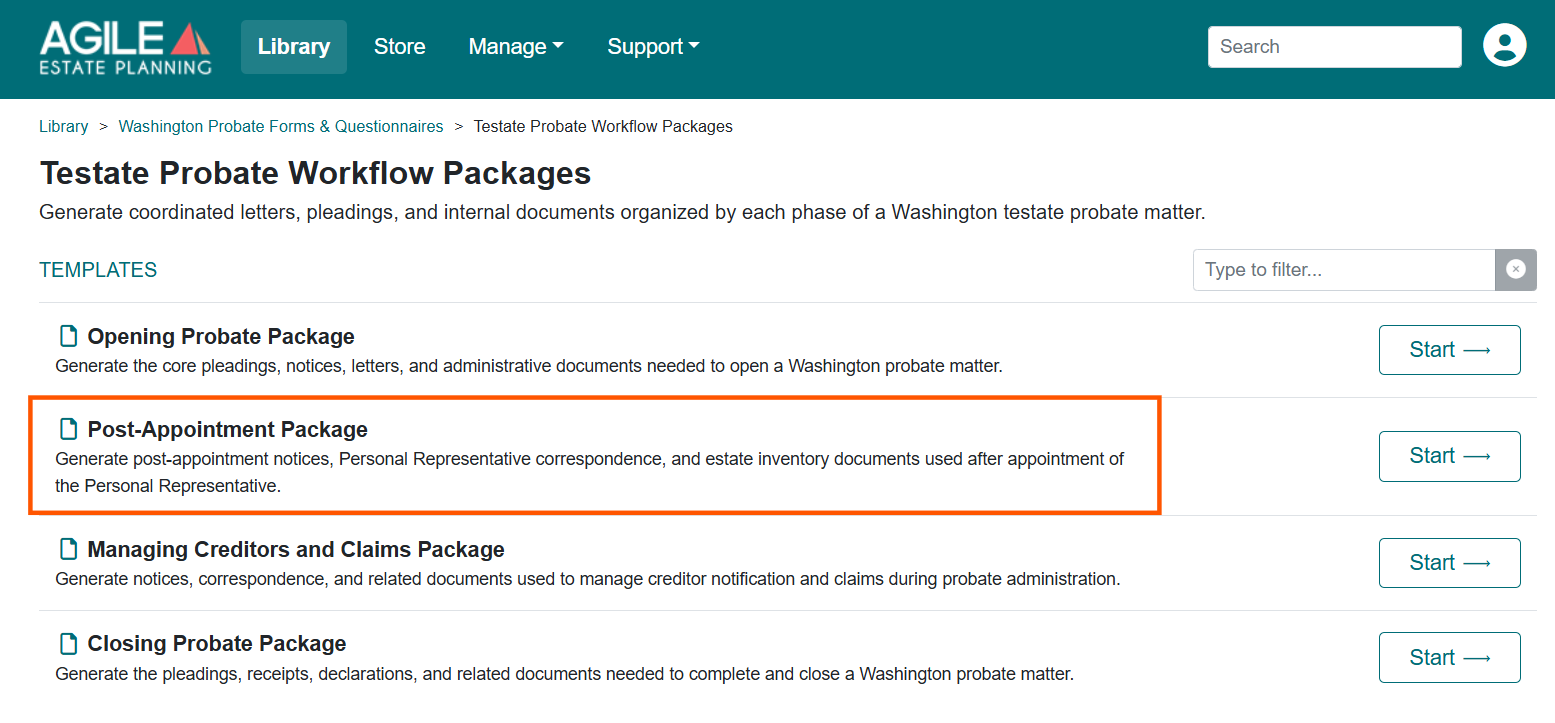
- Select Post Appointment Package.
Loading Prior Answers or Entering Case Information
If you previously prepared the Opening Probate Package for this matter, you can save time by clicking Load Answers and selecting the answer file from that interview. Doing so will automatically populate the following tabs:
- Client/PR Information
- decedent Information
- Surviving Spouse Information
- Children and Grandchildren
- Other Parties
- Assigned Roles
You can also use this package even if the opening pleadings were drafted elsewhere or before using Agile Estate Planning. In that situation, simply complete the interview from the beginning and enter the relevant case information. Once the initial tabs are completed, the remaining sections of the interview will focus on details specific to the post-appointment stage of the probate.
Complete the Drafting Interview
The drafting interview is organized into tabs on the left-hand side of the screen. Work through each section carefully.
Client Information
This is the tab where you enter the personal and contact information for your client, typically the person petitioning to be appointed as Personal Representative. Select whether the client is a person or an entity, then complete the contact details, salutation for letters, and mailing address. For more detail on completing this tab, see this article.
Decedent Information
This is the tab where you enter relevant information about the Decedent, which will dictate the structure of the core probate pleadings. For additional details about this tab, see this article.
Surviving Spouse Information
This tab will appear if the decedent was married at death and the spouse is not the petitioner-client. This information helps to determine the identity of the Decedent’s heirs and ensures spousal rights, notice and waivers are addressed. See this article for additional details.
Children and Grandchildren
This tab is where you enter information about the Decedent’s living children or deceased children who left living descendants. The information entered here includes the parentage, contact information, and capacity status for each descendant, which helps to determine the identity of the Decedent’s heirs and proper rights, notice and waiver. See the Children and Grandchildren Tab article for detailed guidance.
Other Parties
This tab is where you enter all remaining interested and necessary parties to the probate matter (other than the spouse, children and grandchildren). These types of parties often include individuals, trusts, charities, UTMA custodians, nonprobate beneficiaries, and heirs not previously entered. This tab also has a tool to help you confirm the Decedent’s heirs based on your earlier entries. See the Other Parties Tab article for further details about how to enter these additional parties.
Assign Roles to Parties (Important)
Probate can be complicated because a person may have multiple roles in the legal proceeding. This tab allows you to assign one or more matter-specific roles to each party you’ve entered into the system. Every party must be assigned at least one role, either an heir, an estate beneficiary, a nonprobate asset beneficiary or a special notice recipient.
Ultimately, this tab manages proper identification of parties but also proper delivery of notices and waivers to those parties. If roles are not assigned properly, then key parts of the probate documents will be incorrect or even fail due process requirements. Learn more about how to properly complete this critical tab in this article.
Case Details
This tab controls case caption information, venue, and specific options that may be available in the drafting package. The fields on this tab will vary depending on the drafting package selected, so it is important to review and complete all fields on this tab every time. This tab also asks whether to apply attorney electronic signatures (/s/) to eligible filings. See this article for what each answer produces and which filings it affects.
Firm Details
This tab controls the responsible attorney and, if applicable, the notary for this matter. The information selected here populates signature blocks, attorney declarations, bar number references, and contact information in the pleadings throughout the matter.
Document Selection
In this package, you will choose the documents you want to prepare on the Document Selection tab before completing the remaining interview questions. This tab displays all documents available in the Post Appointment package, grouped by category. You may return to the Document Selection tab at any time to add or remove documents as needed. The interview will adjust automatically based on your selections.
Once you select a document, additional interview tabs will appear that gather the information needed to create that document. For example, selecting a notice or letter will add a tab where you can enter the details required for that specific document.
For additional details about delivering notice of pendency to parties and agencies, IRS forms, and the probate notice to creditors, see our Post Appointment Notice article. For more information about the various letters available to help explain the probate process, creditor issues, tax matters, and more, see our article about available client letters. For guidance on preparing an inventory and appraisement, see this article.
Assemble Your Documents
Once you have selected your documents, proceed to Assemble Documents to generate the final pleadings. For detailed instructions, see this article.